Learn to set up Google Scholar to search databases at PCC Library; save articles; find full text articles; use Google Scholar citation tools.
What is Google Scholar?
Google Scholar searches scholarly information such as academic articles, peer-reviewed articles, academic books, and court documents available on the Internet. It uses the power of Google searching, but filters results to be more academic.
Access Google Scholar
You can access and use Google Scholar by visiting scholar.google.com.
Setting Up Library Links
You can link Google Scholar to databases at PCC Library, allowing you to search more than one database at a time. On your home computer:

- Click on the menu at the top of the screen, next to “My profile” and “My library”. (see above)
- Select Settings from the menu on the left of the screen.
- Under Library Links search for and check everything that says Portland Community College and Open WorldCat – Library Search.
- Click SAVE. Your preferences will be saved as long as your cookies are enabled. Note: If you are using a public computer, your preferences will not be saved.
Now your search results will show articles you can get on the free web or through the PCC Library collection.
Finding Full Text Articles
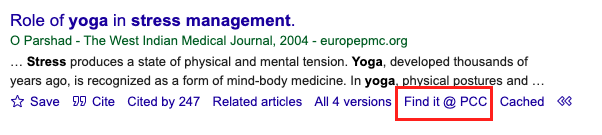
If you have PCC Library set up in your Scholar Preferences link, and PCC Library has the article, the label Find it @ PCC will show to the right.
For example, in the article shown below you can choose either the web source of the article (“[PDF] researchgate.net”) – which is faster – OR the PCC full-text version in our databases.

Request Full Text of an Article through PCC Library
If you can’t access full text of an article through Google Scholar, look for a double arrow pointing right underneath the item (as seen in the screenshot below).
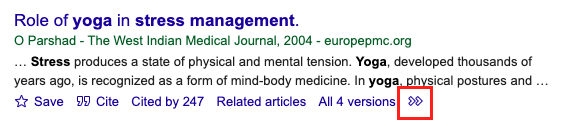
Click the double arrow to reveal a “Find it @ PCC” link.
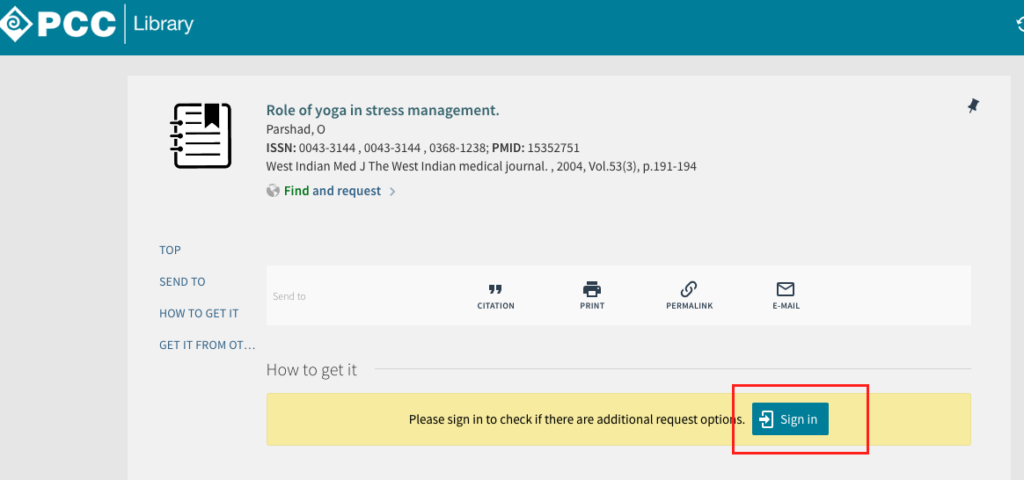
Once you click the link, it will bring you to a page in PCC Library’s search that will allow you to sign in using your MyPCC login to request the item. Learn more about requesting library materials this way through PCC Library.
Never Pay for an Article
Sometimes, clicking the article title will take you to a journal website that will ask you to sign in or pay to get the article. Never pay for an article. Contact a librarian if you want a specific article, but it is not available right away. We can usually get the article within a few days for free or help you find another article on your topic.
Watch a Video on Searching Google Scholar
Learn more about finding quality sources with Google Scholar by watching PCC Library’s YouTube video.
Citing Articles
The quotation mark symbol next to the word “Cite” below the entry gives you a pre-formatted citation in MLA, APA, and other citation styles.
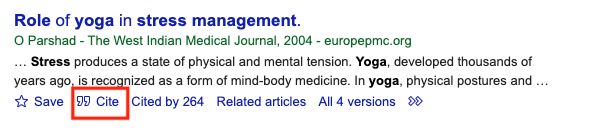
Use a style manual or citation guidelines to make sure the citations you find in Google Scholar are formatted correctly.
Below is a citation in MLA format and as it appears in Google Scholar. Notable differences include: no hanging indent, a different font, abbreviations of the volume, issue, and date of publication, and no use of “pp.” to indicate page range.
Properly formatted MLA citation
Lackey, Robert T. “Pacific Northwest Salmon: Forecasting Their Status in 2100.”Reviews in Fisheries Science, vol. 11, no. 1, Mar. 2003, pp. 35-88.
Google Scholar version of an MLA citation:
Lackey, Robert T. “Pacific Northwest salmon: forecasting their status in 2100.” Reviews in fisheries Science 11.1 (2003): 35-88.
Get Help from PCC Librarians
Call a Librarian
- Cascade: 971-722-5269
- Rock Creek: 971-722-7239
- Southeast: 971-722-6289
- Sylvania: 971-722-4500
Email or Chat a Librarian
- Email: refer@pcc.edu
- Chat: Click the yellow “Chat” button
 on the top right of every page on the PCC Library website.