
Student ID cards
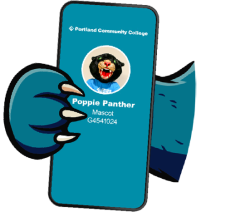 PCC students use digital ID cards to access services like shuttles, computer labs, libraries, and Panther Pantries. Simply tap your mobile device at a reader to explore college resources.
Who can get a Panther OneCard
- Any student currently signed up for a class at PCC
How to get your Panther OneCard
- Download the TouchNet 360u app on your iOS or Android device

- Search for Portland Community College and click Continue.
camera retroPhoto guidelines
- Front-facing picture
- Face centered in screen
- Only student face in picture
- Shoulders up
- No hats or head coverings except religious coverings
- No face masks
- No AI-generated pics
- No filters
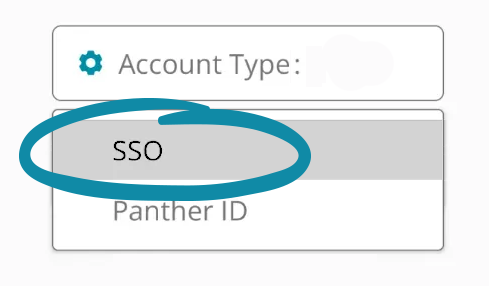
- Choose SSO, then log in with your PCC email and password (login help) and review privacy notice.
- Upload your photo (open the menu in the top right to see options).
- You’ll get a message at your @pcc.edu address when photo is approved.
- ID is ready to use!
New features coming soon! Students will be able to pay with their Panther OneCard at dining services and the bookstore.
Help with ID cards
New smartphone?
You can’t register an ID to more than one phone, so if you get a new phone (or lose your old phone), use the Panther OneCard portal to remove the old phone from your account.
No smartphone?
You can still get a printed photo ID card from Student Navigation Services. Bring a valid photo ID with you: examples are a passport, driver’s license, military ID, US permanent resident card, foreign ID, tribal ID. Digital ID cards show your legal name for now, but printed student ID cards can use your preferred name. Physical ID cards are not available the first week of the term. There is $10 replacement fee for lost cards.
Questions?
For help with your student ID, please contact PantherOneCard@pcc.edu.