
Self-Service Password Reset (SSPR)
Self-Service Password Reset (SSPR) allows you to independently recover and reset your PCC account password quickly and securely. By registering your preferred authentication methods, such as the Microsoft Authenticator app, a phone number, or an alternate email, you can regain access to your account at any time without needing to contact the IT Service Desk.
To Claim or Recover Your Account
Follow these instructions to set up or reset your account password.
- Navigate to the password reset portal.
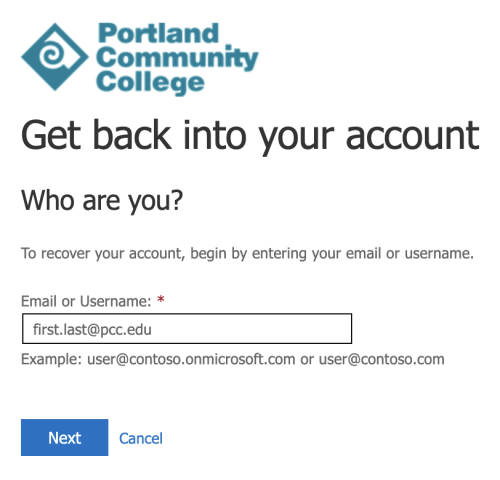
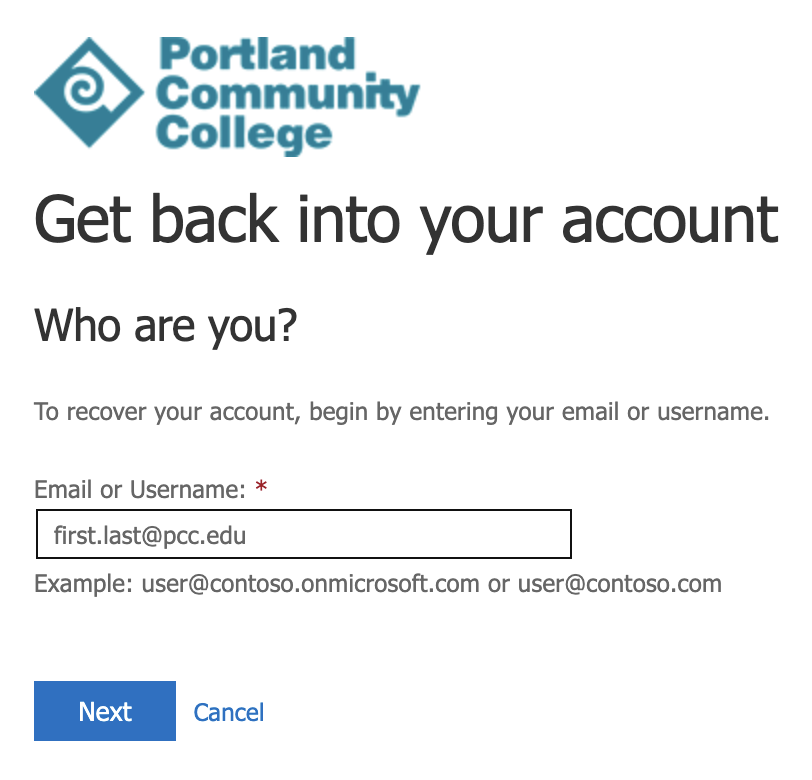
- Enter your full PCC email address, and click Next.
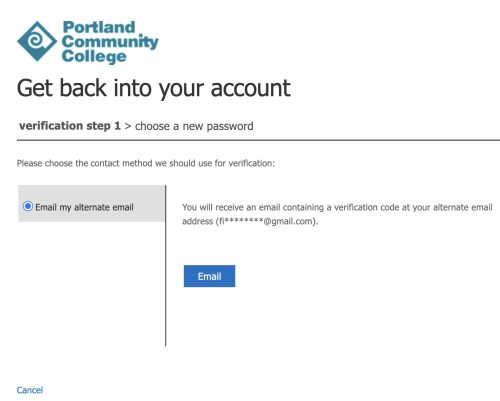
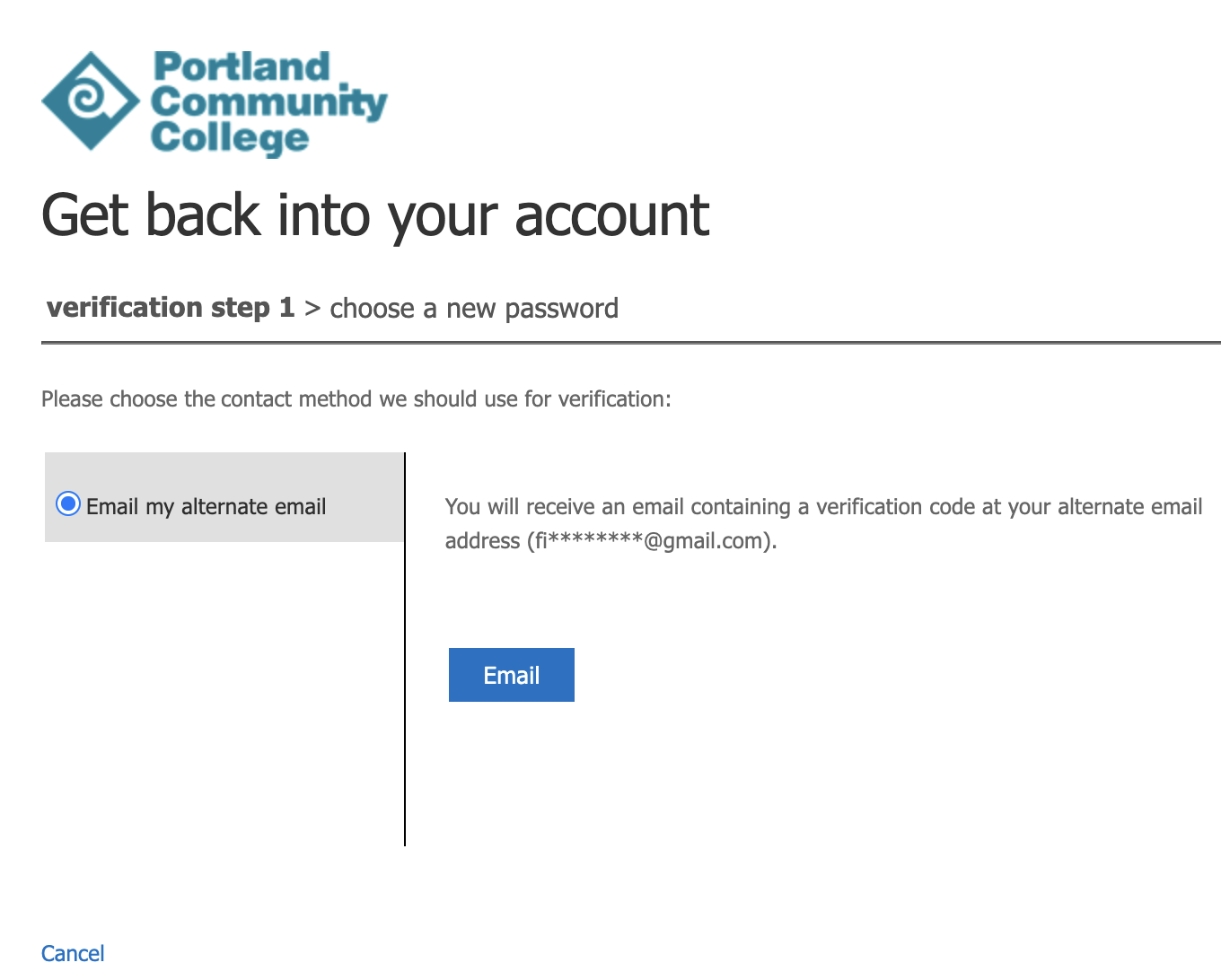
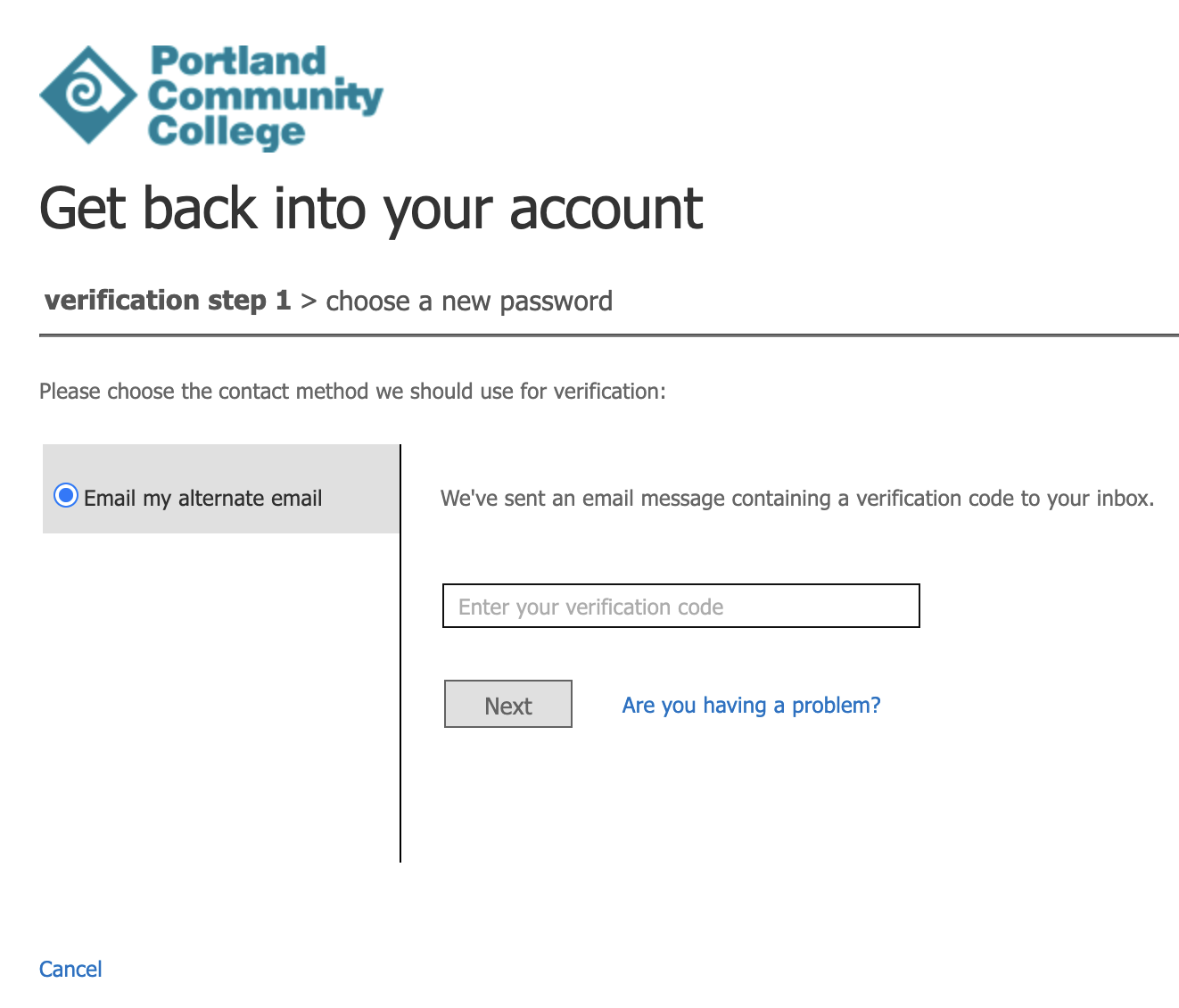
- Choose your preferred contact method. For example, select the Email my alternate email option and this will send a code to your personal email on file.
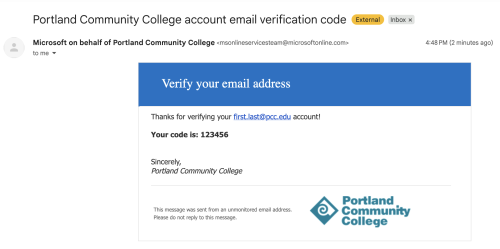
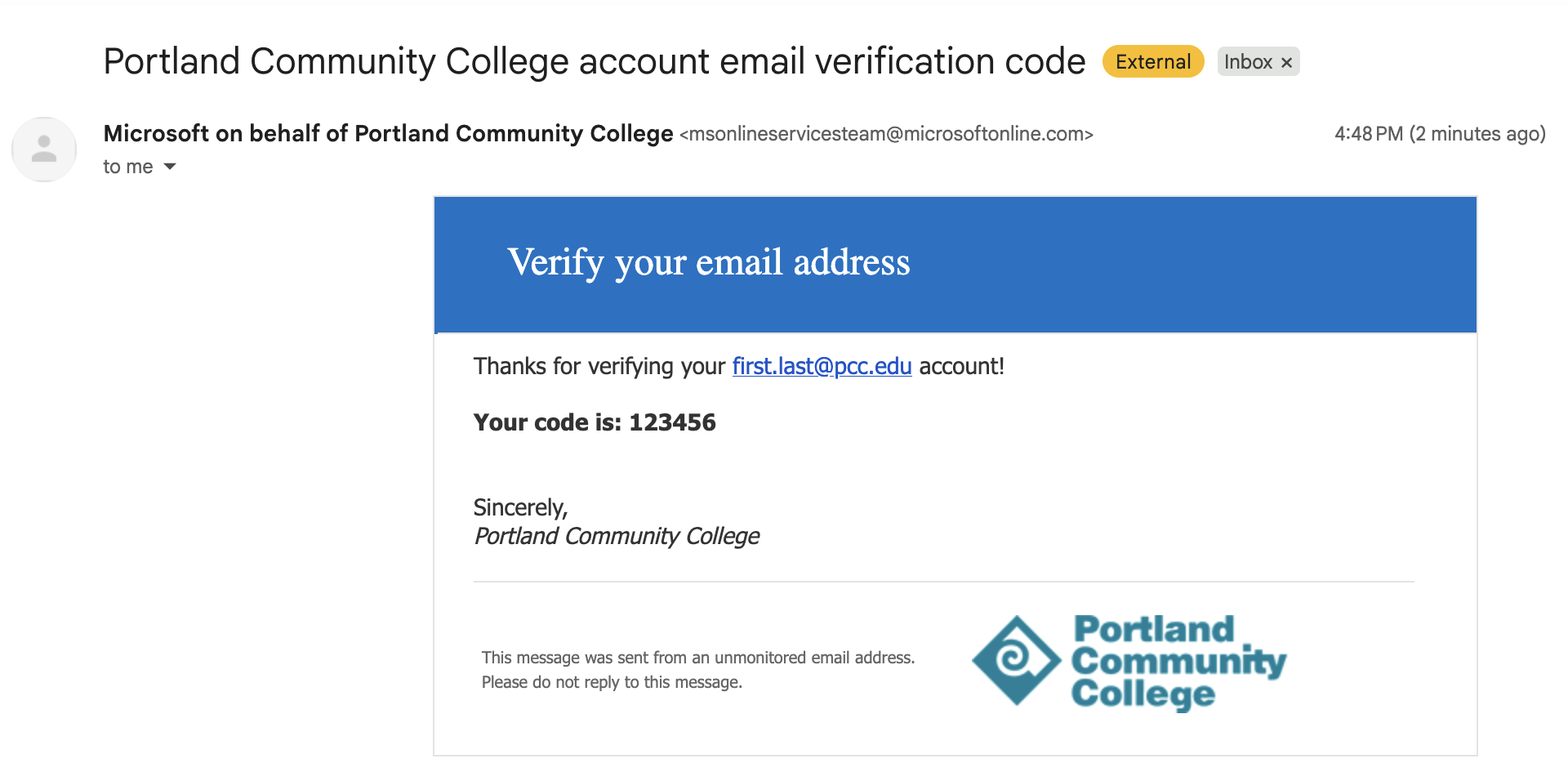
- Look for the verification code email in your inbox.
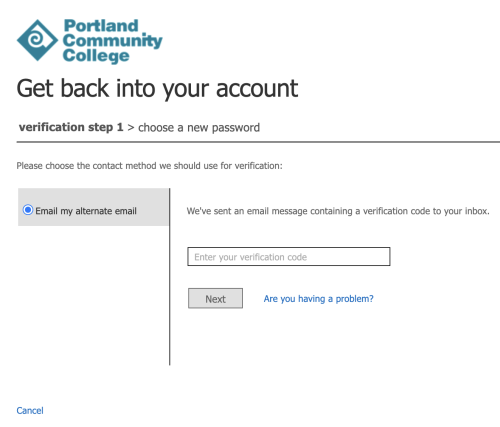
- Enter the verification code, and click Next.
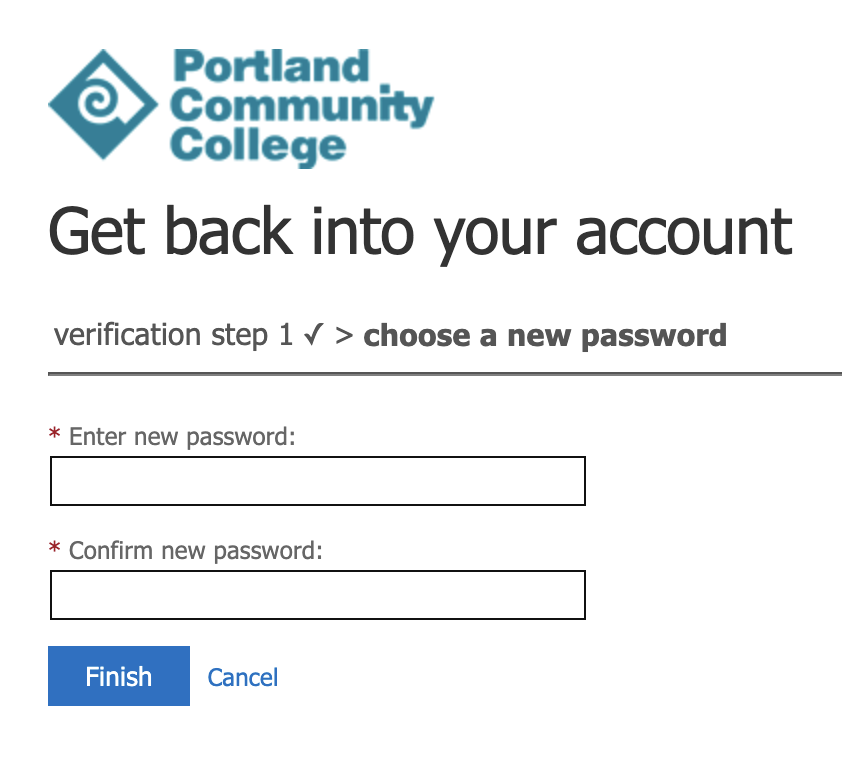
- Type in your new password, type it again to confirm, and click Finish.
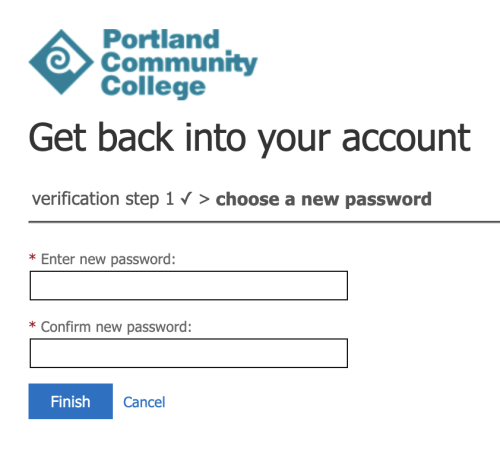
- Success! You can now log in using your new password. Navigate to the portal at my.pcc.edu and sign in using your brand-new password. If MFA is already set up, then complete the challenge, otherwise you may be prompted to set up MFA as noted below.

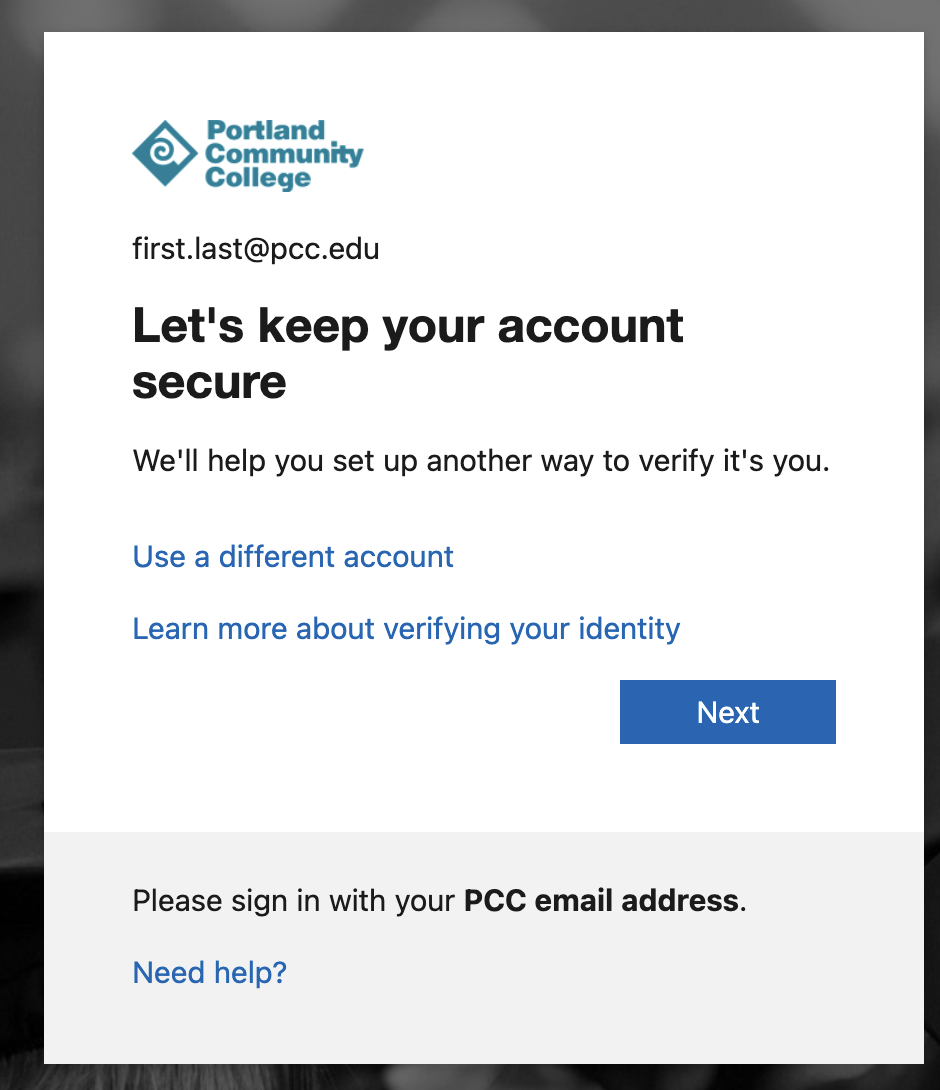
- You may see a screen stating that your organization requires additional security information. Click Next.
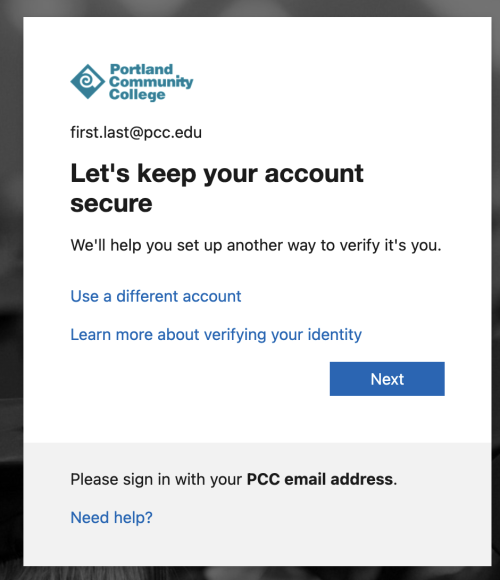
- If your phone number is already listed on the screen, then review it to make sure it is correct and click the Looks good button to save it permanently. Otherwise, follow the on screen instructions to add your phone number information.
- You are finished! You will now be securely passed through to the MyPCC portal.

Need assistance?
If you encounter issues recovering your account, please contact the IT Service Desk at 971-722-4400.