Adobe Express templates
The PCC Marketing Department created these DIY marketing templates to give you a jump-start on your project. Each of our templates follow the college’s brand identity standards for logo usage, color palette and font choice. By utilizing these templates you can be reassured that you’ll be representing the college in a consistent and cohesive way, which will strengthen your message and ensure your audience has a positive experience.
Adobe Express is an all-in-one design app for creating branded designs quickly and easily. (If you’re familiar with Canva, you’ll find Adobe Express similar and easy to learn.) It’s free to all PCC staff and faculty, and includes an extensive selection of templates and intuitive design features so you can create eye-catching posters, graphics and more.
Choose from the following DIY marketing templates:
- Flyers
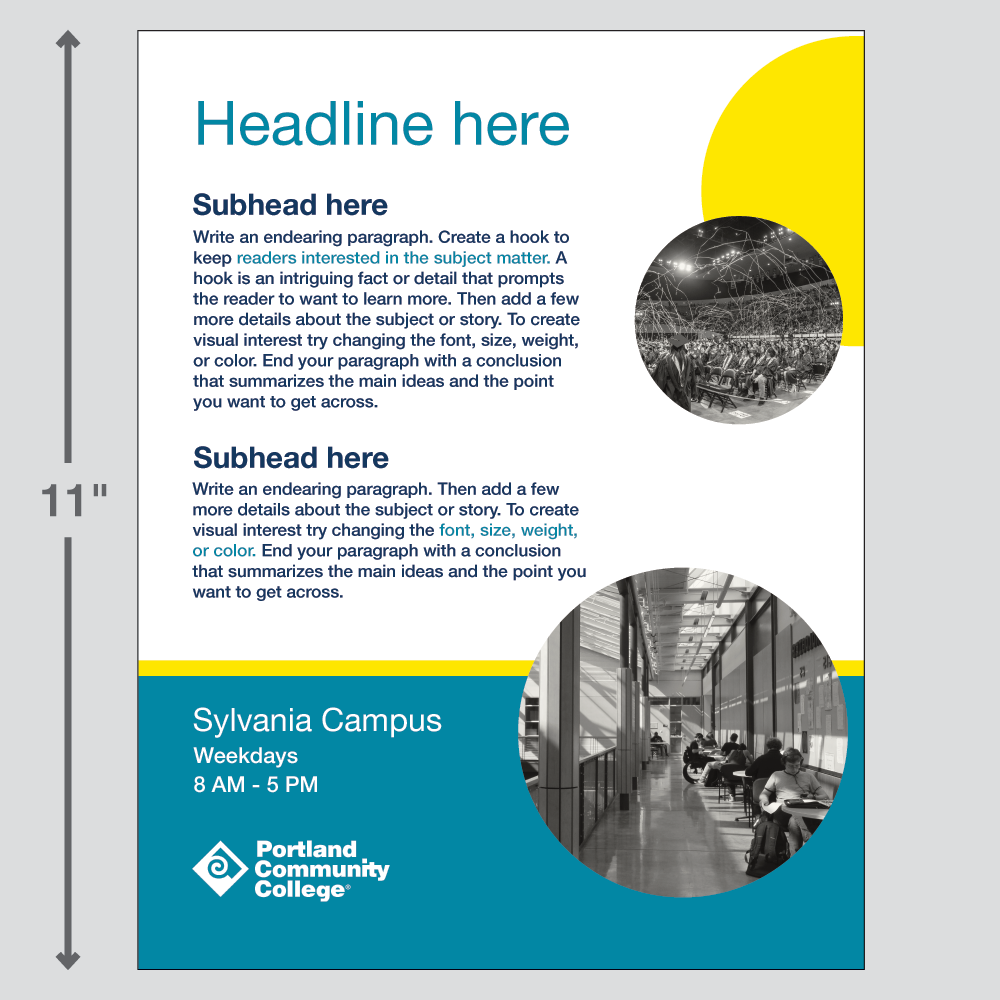
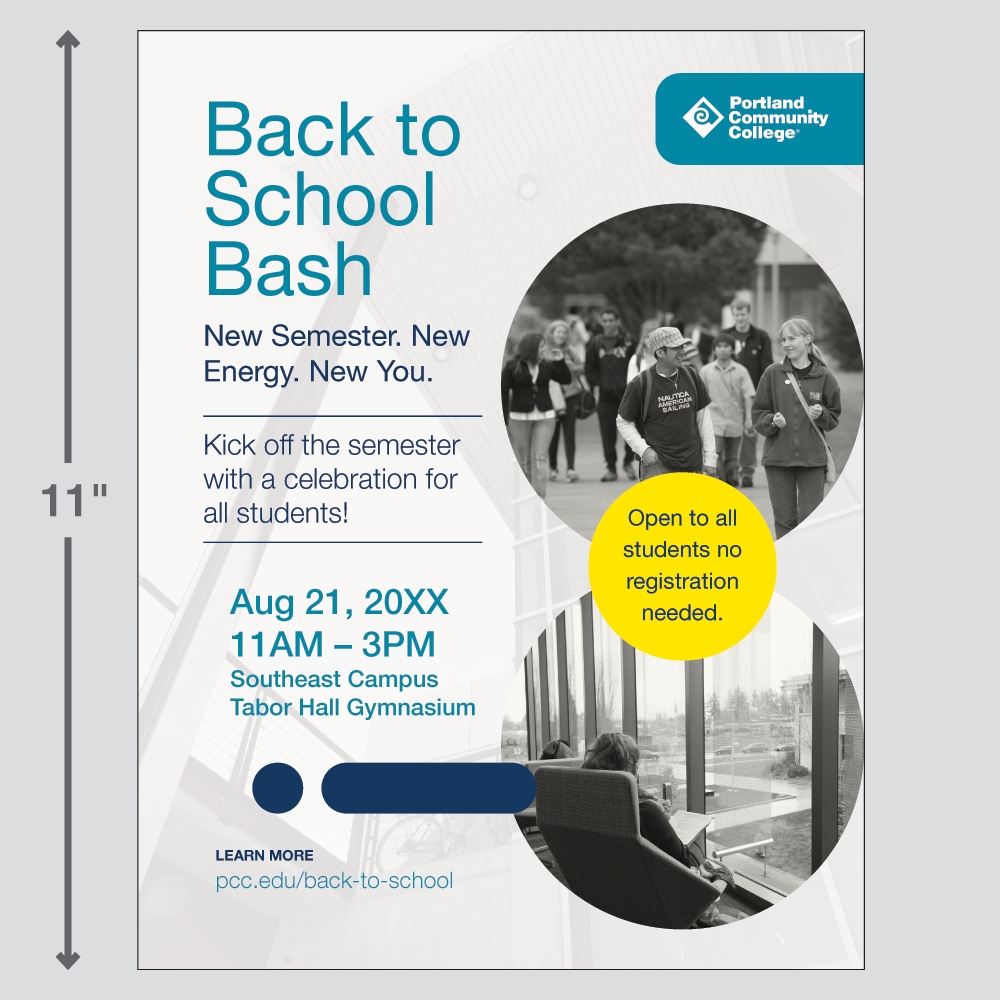
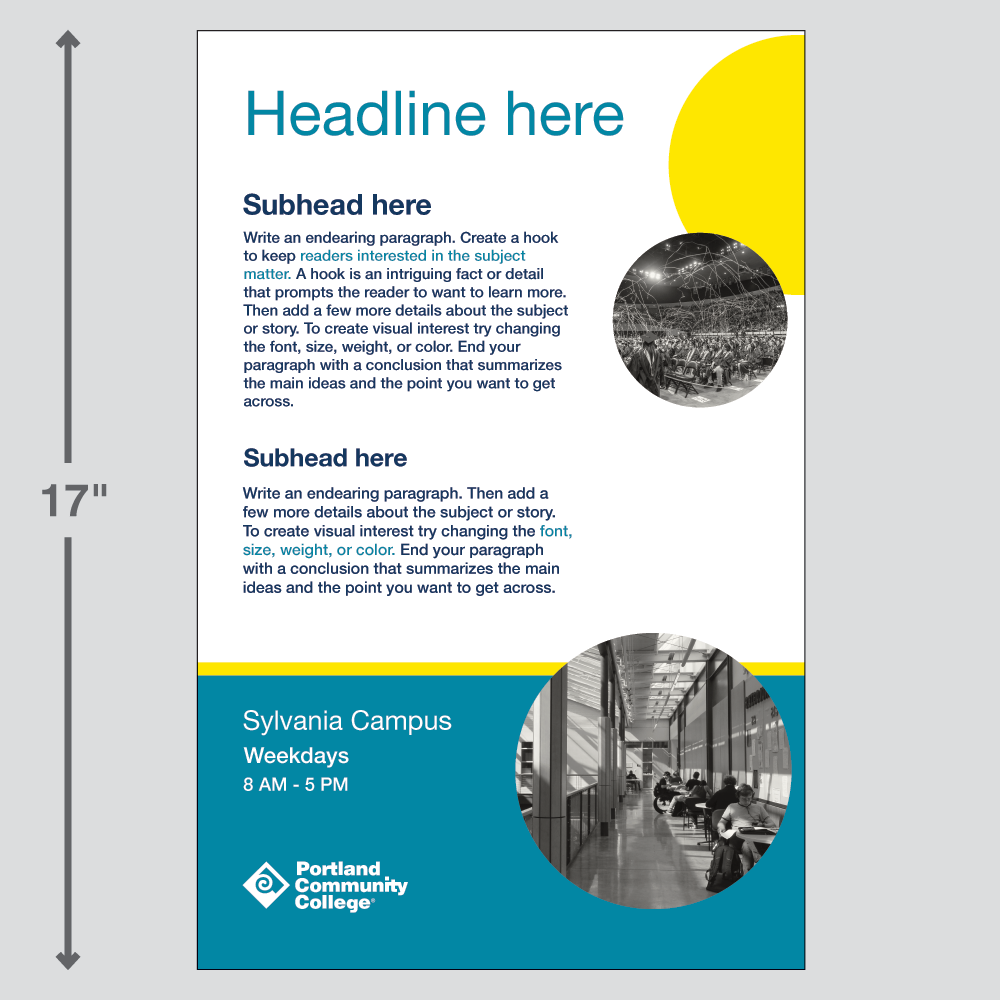
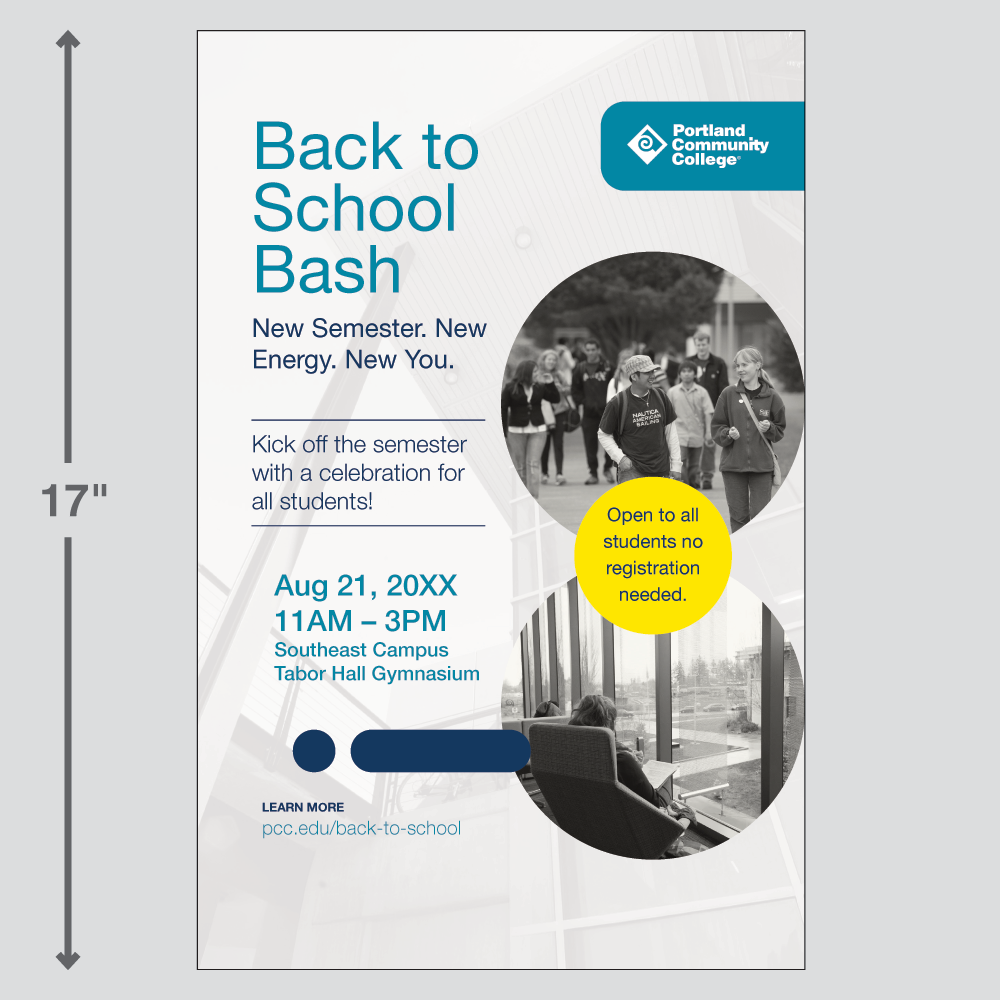
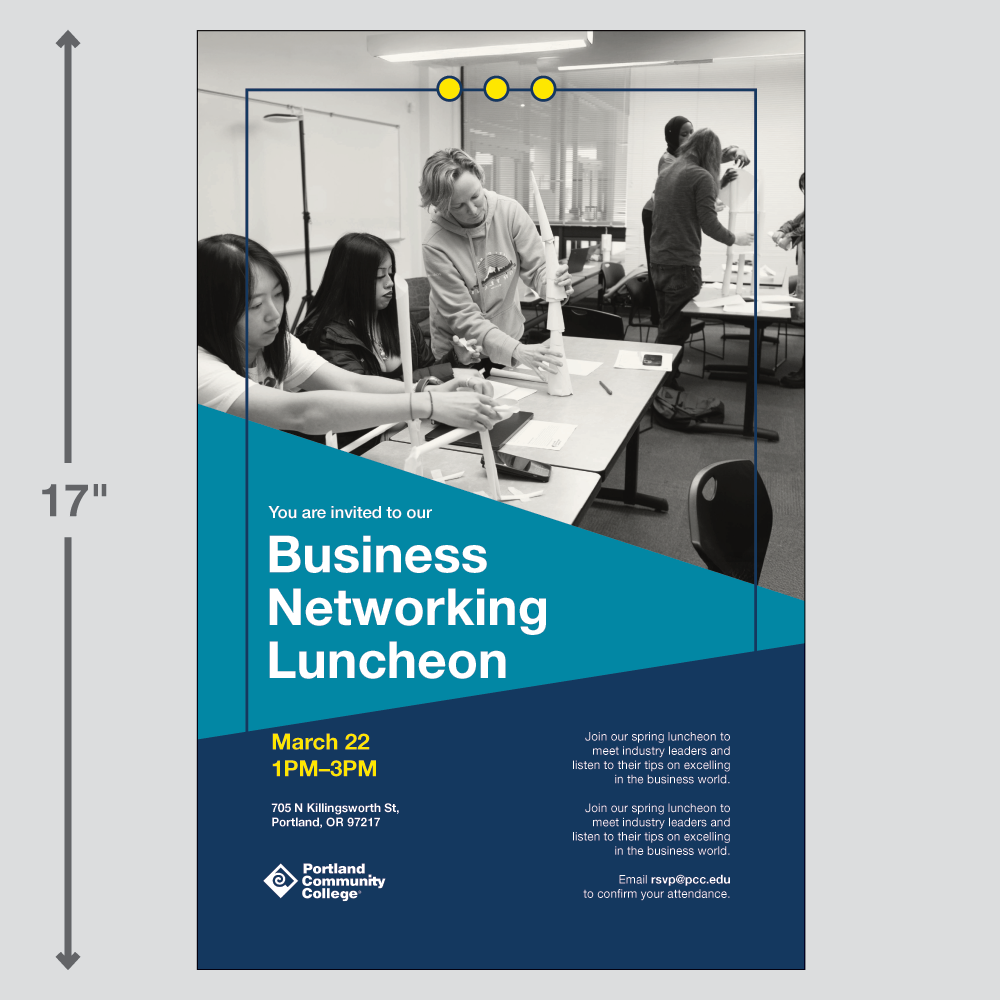
- Posters
- Handout postcards
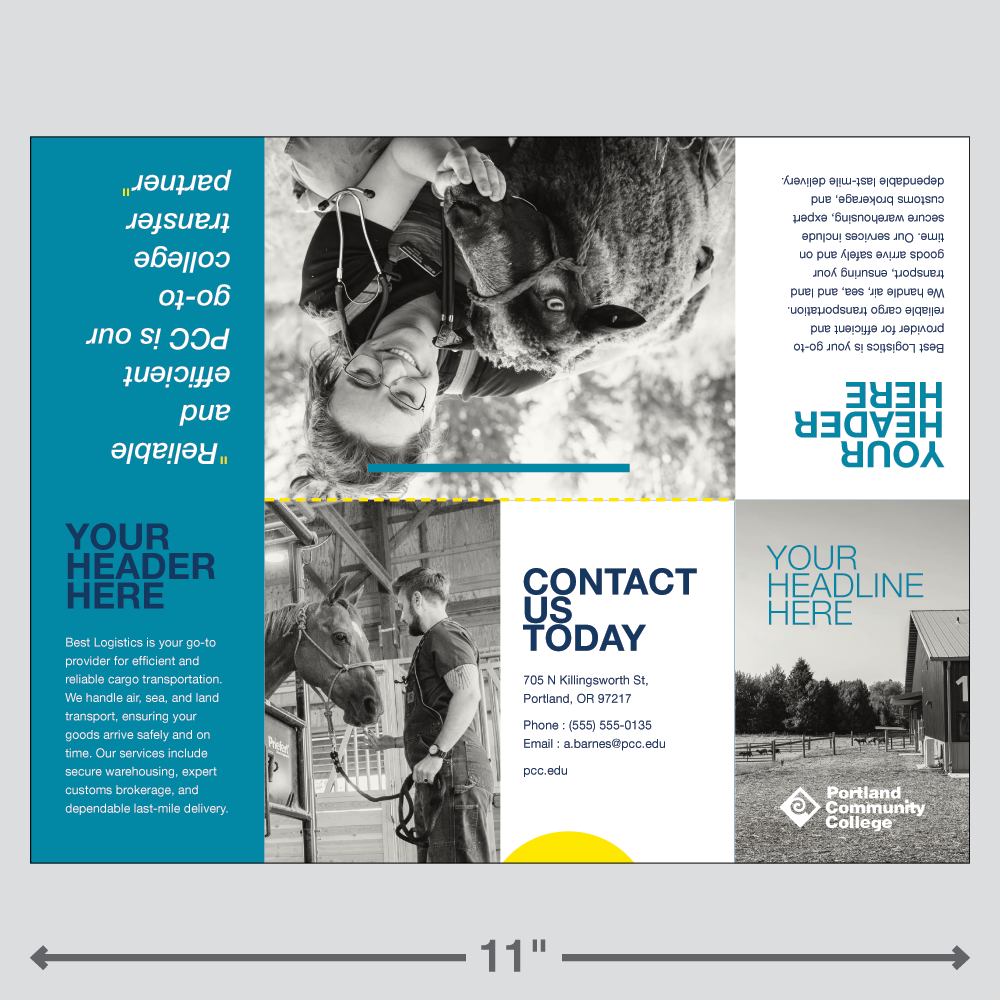
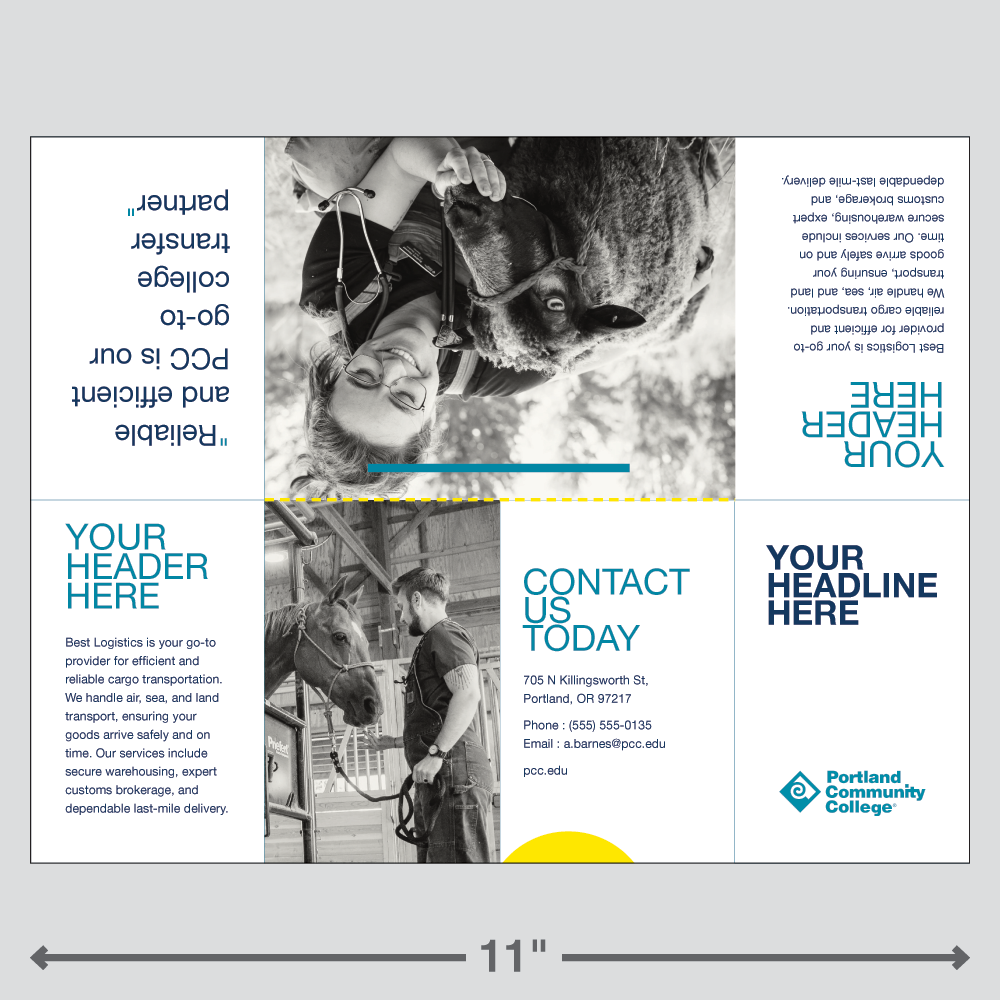
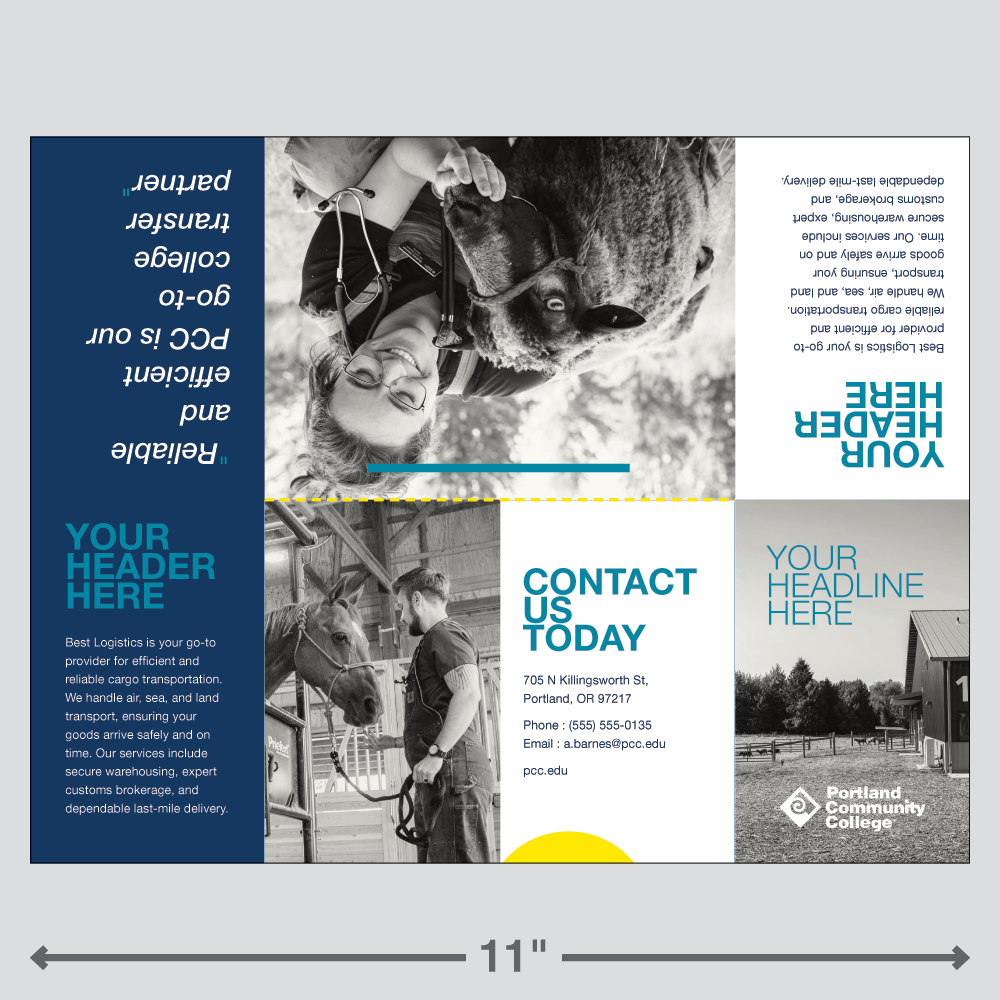
- Trifold brochures
- Mini zine booklets
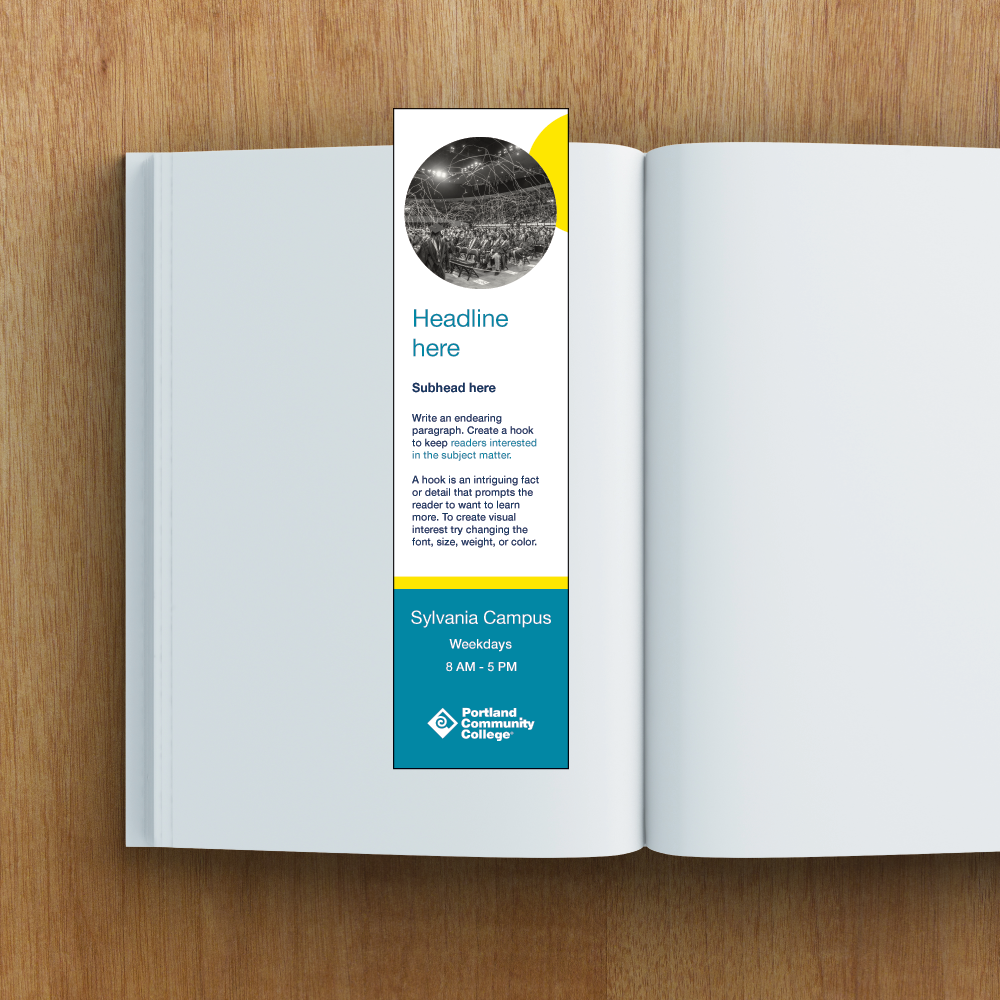
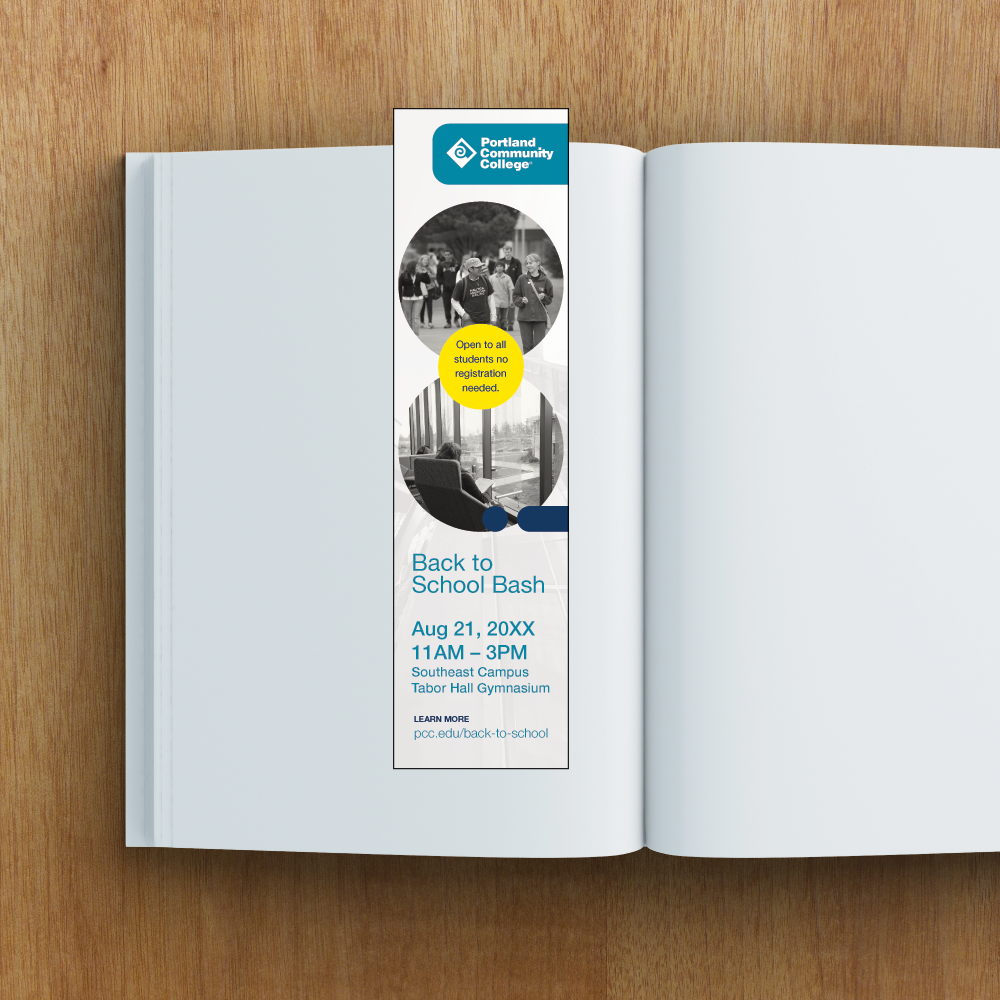
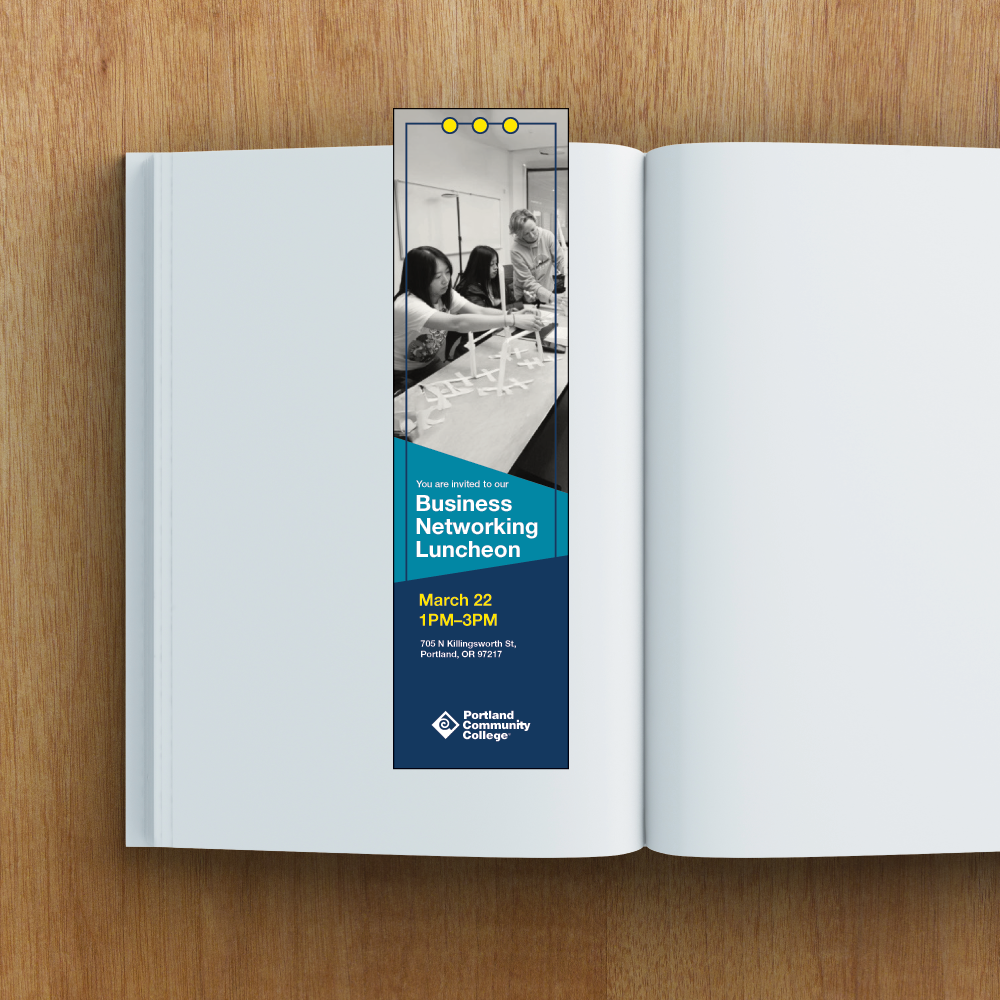
- Bookmarks
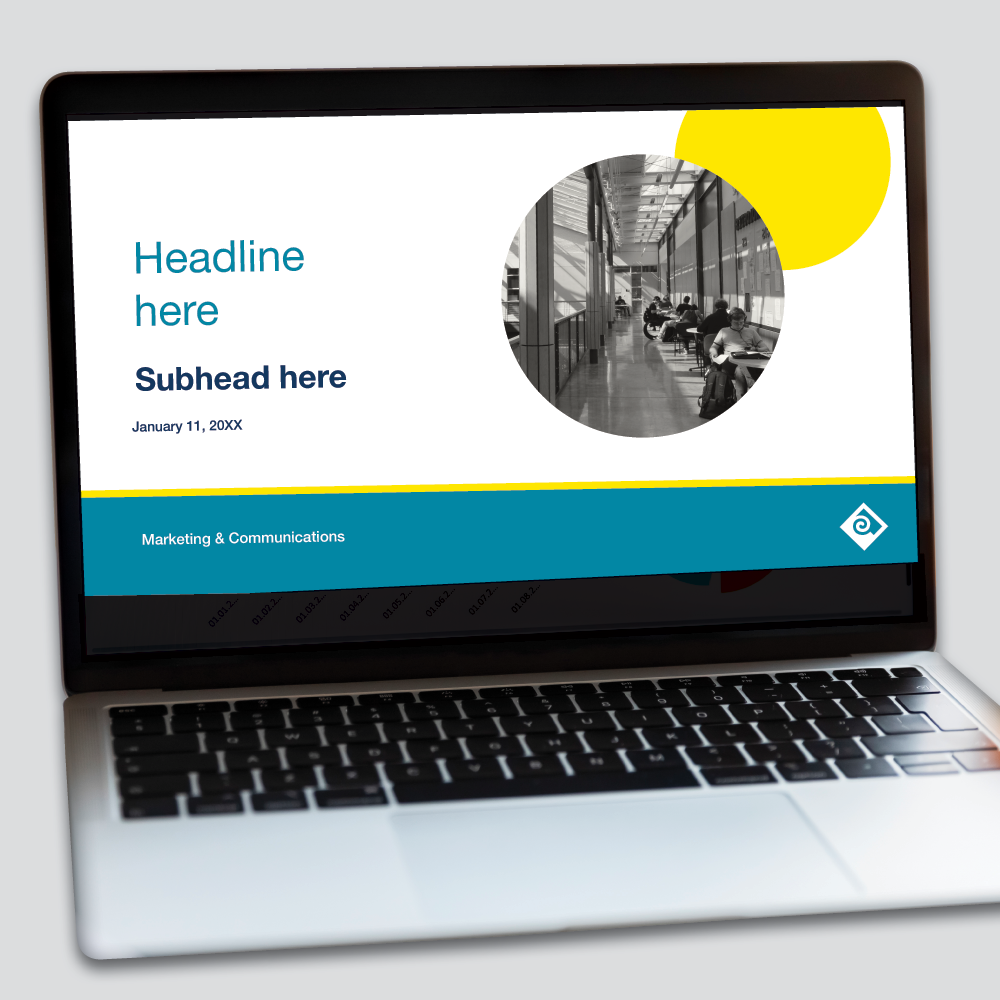
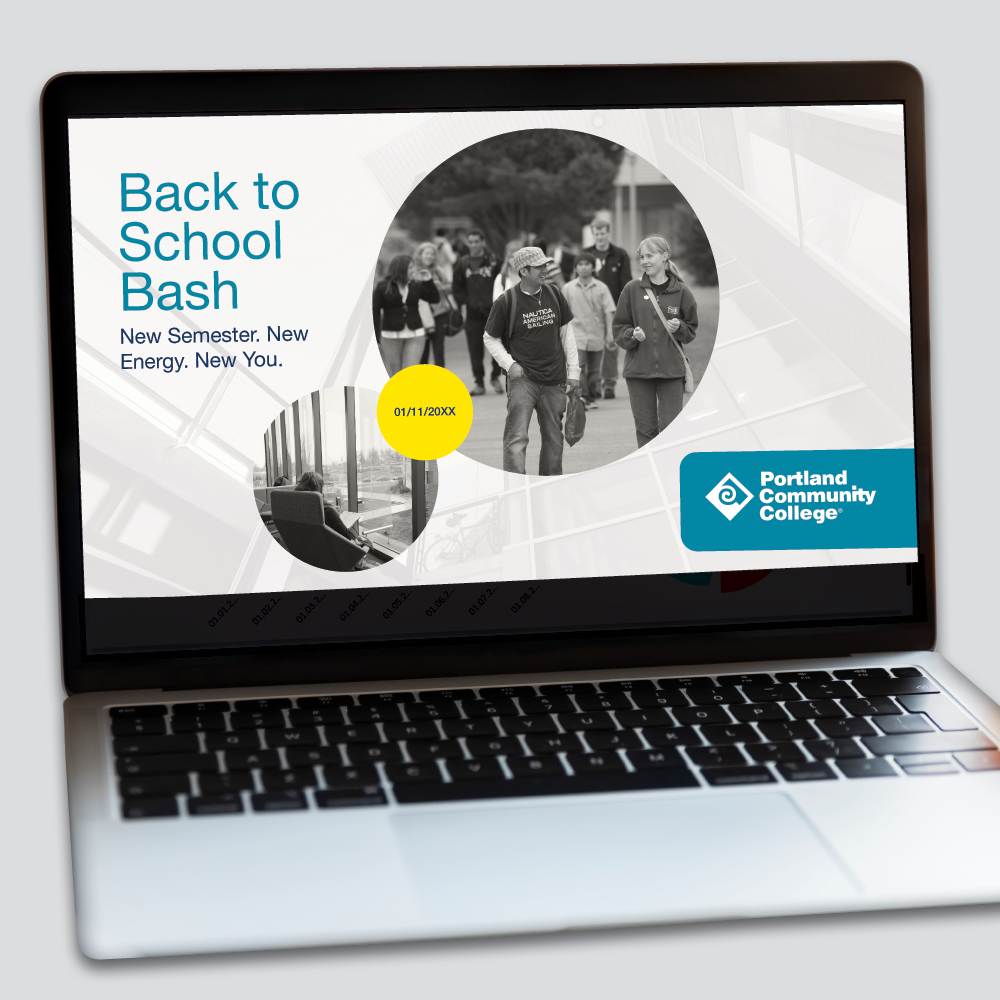
- Presentations
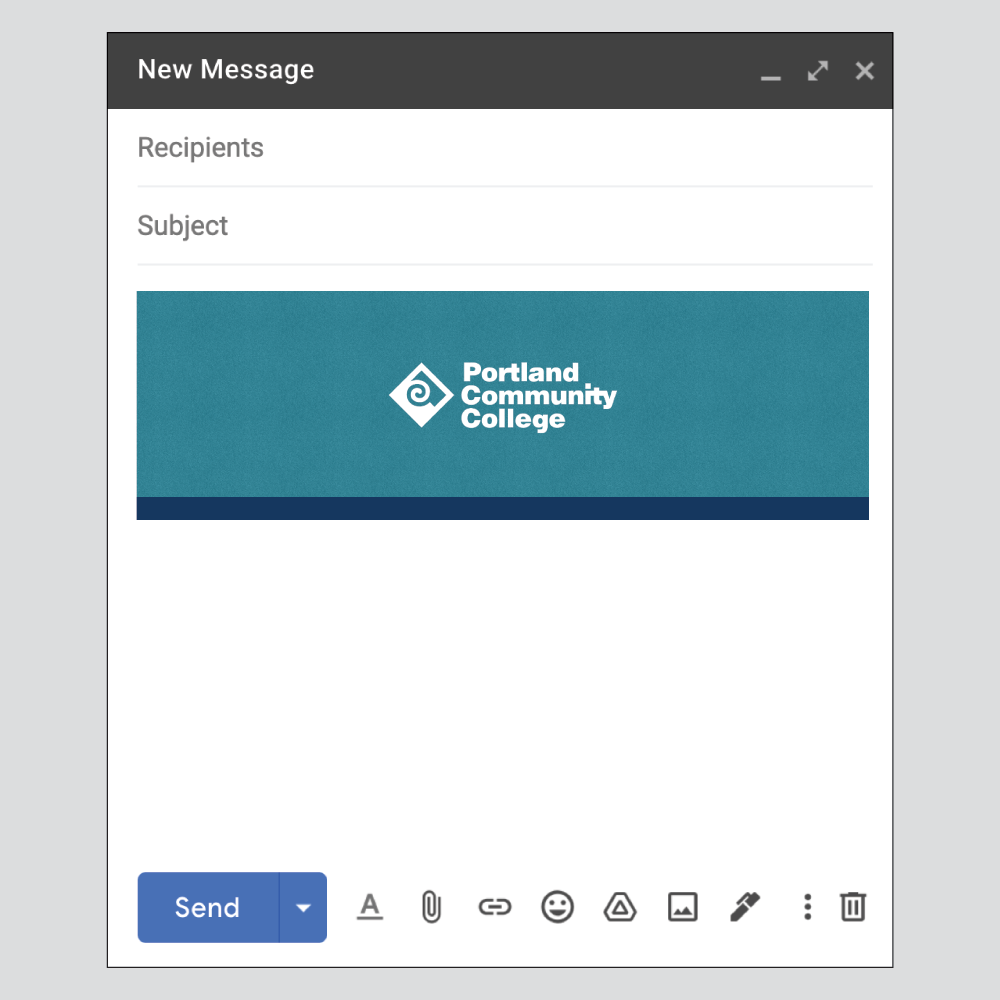
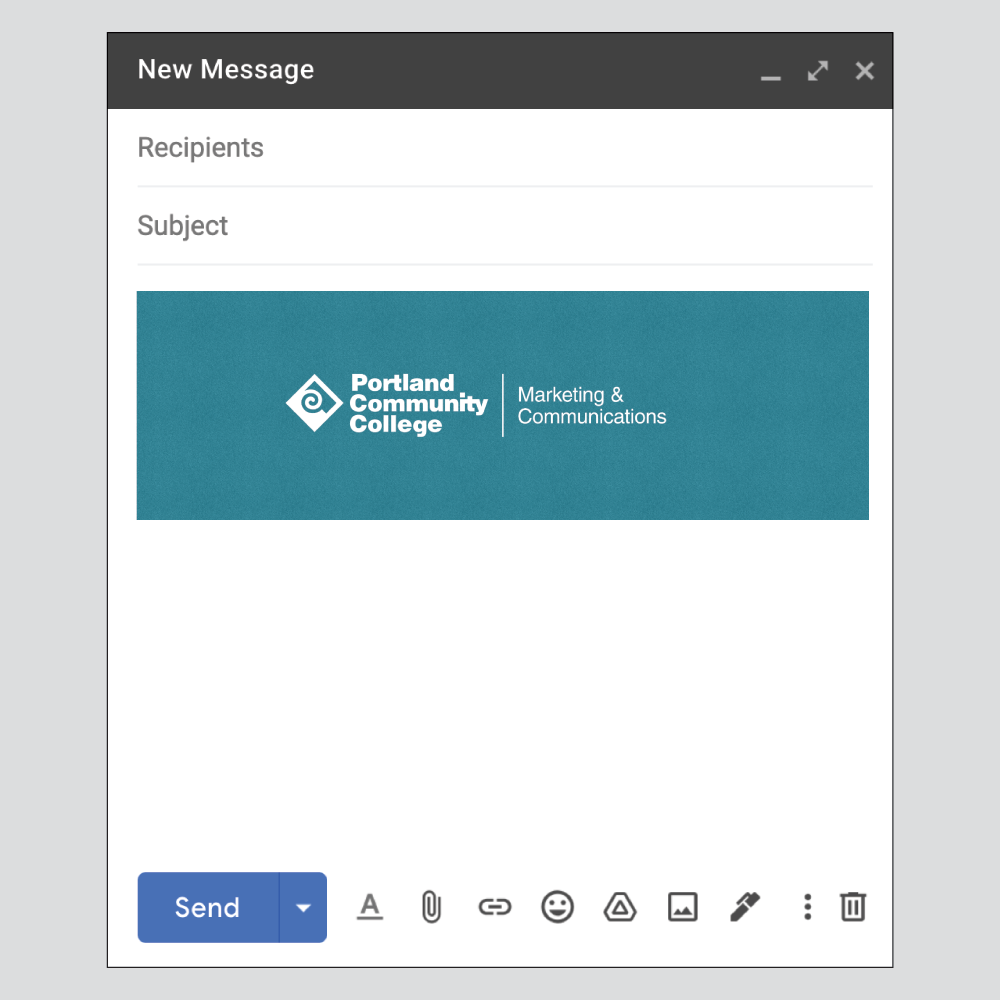
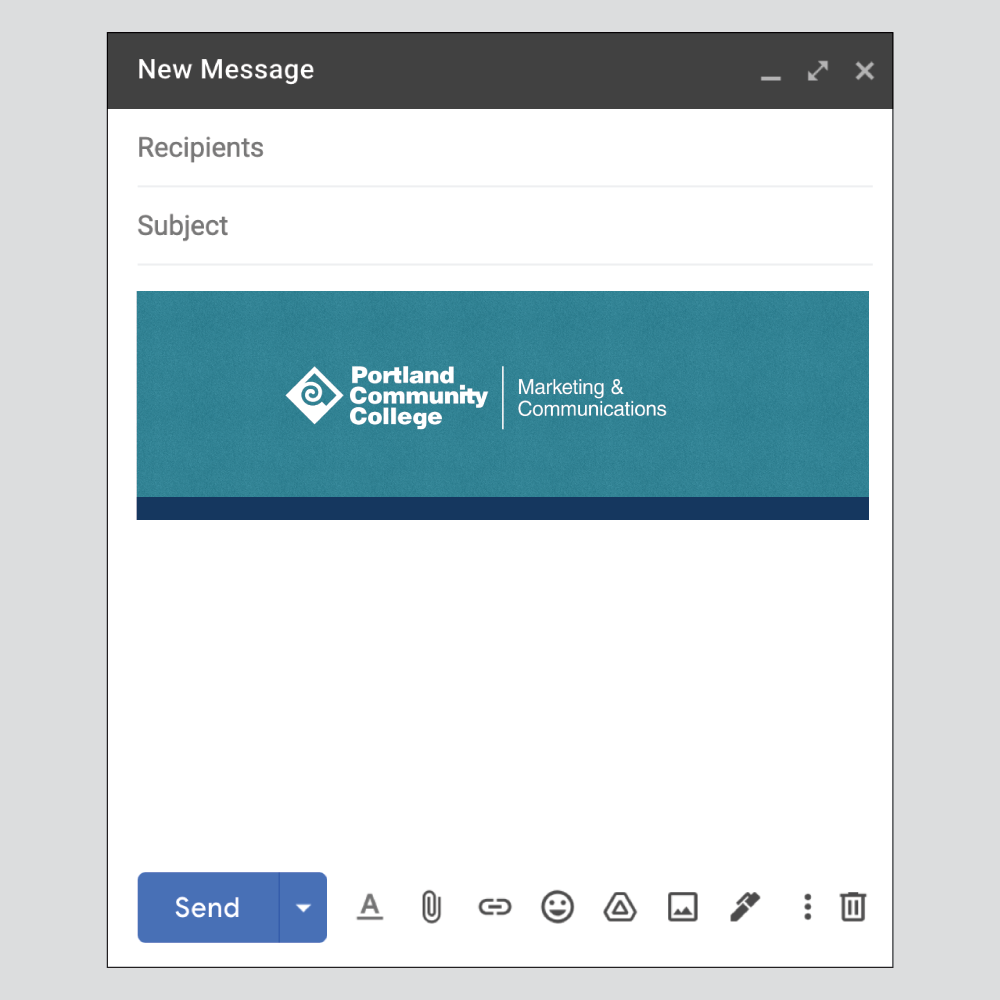
- Email headers
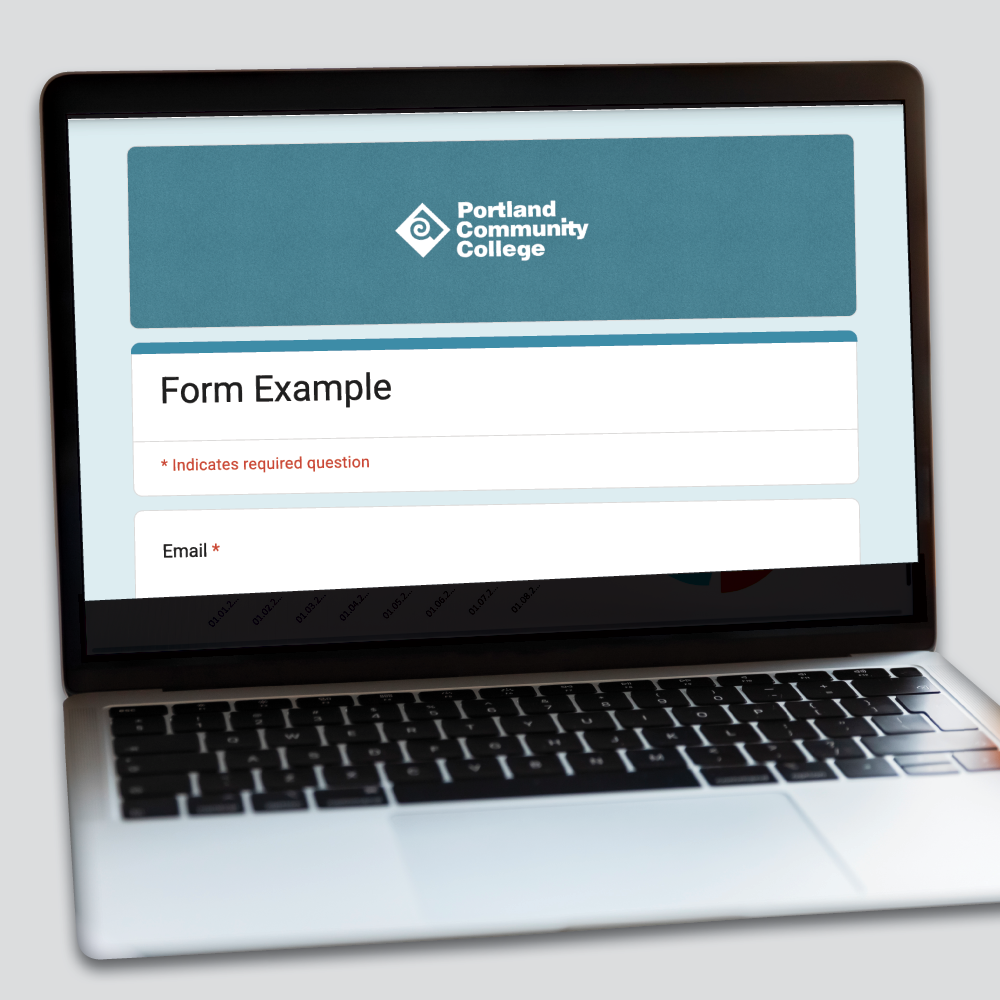
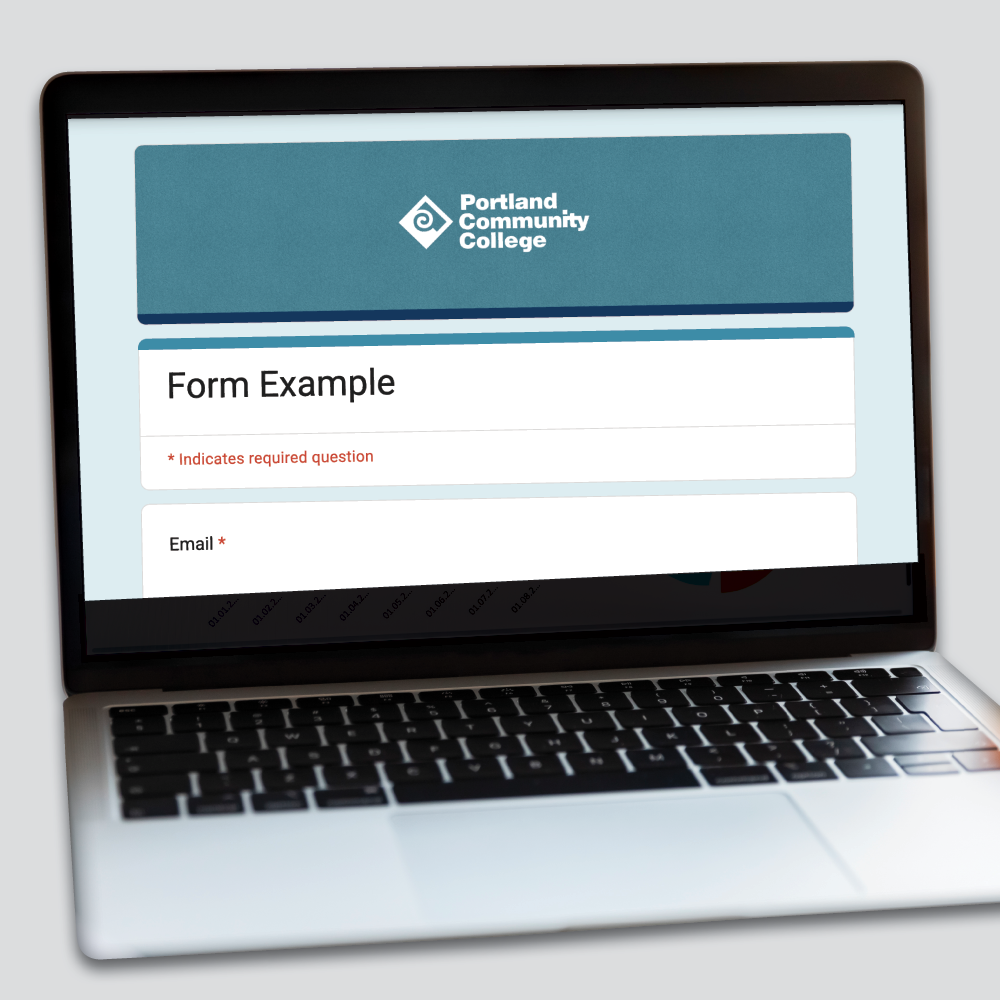
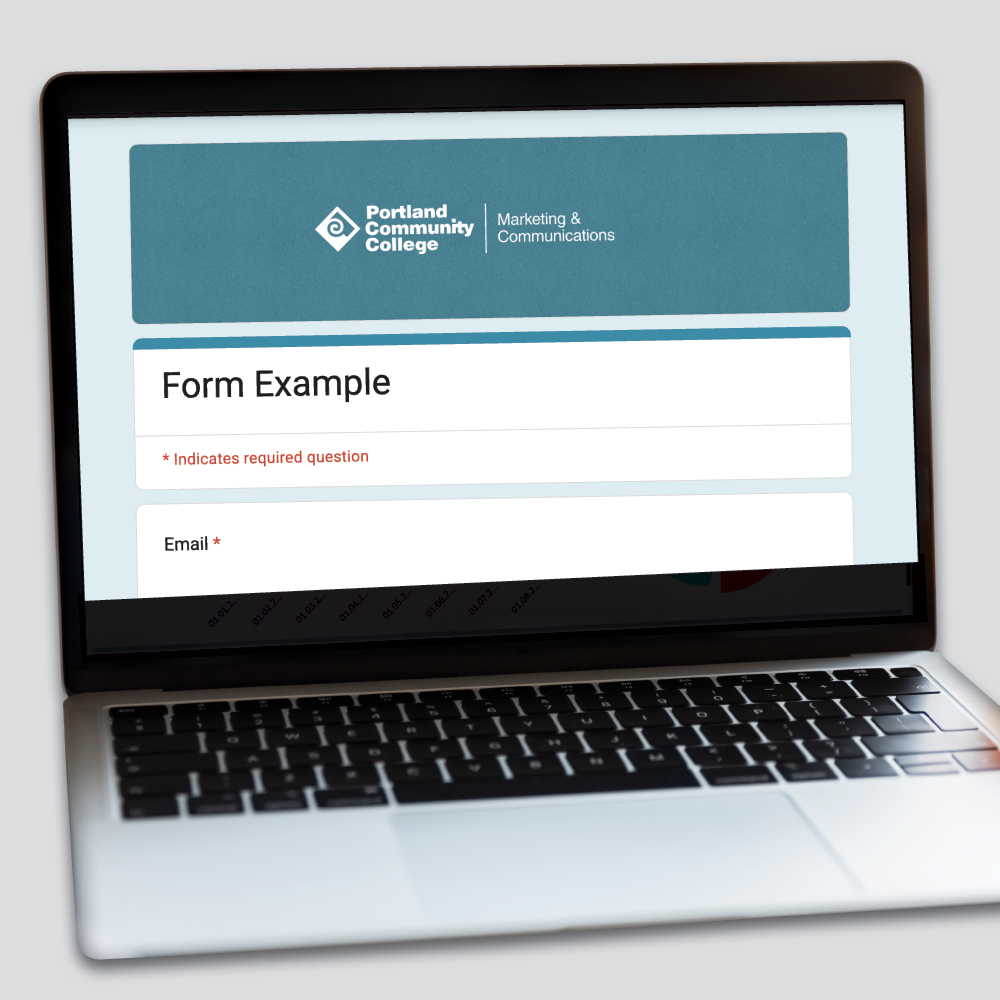
- Google Form headers
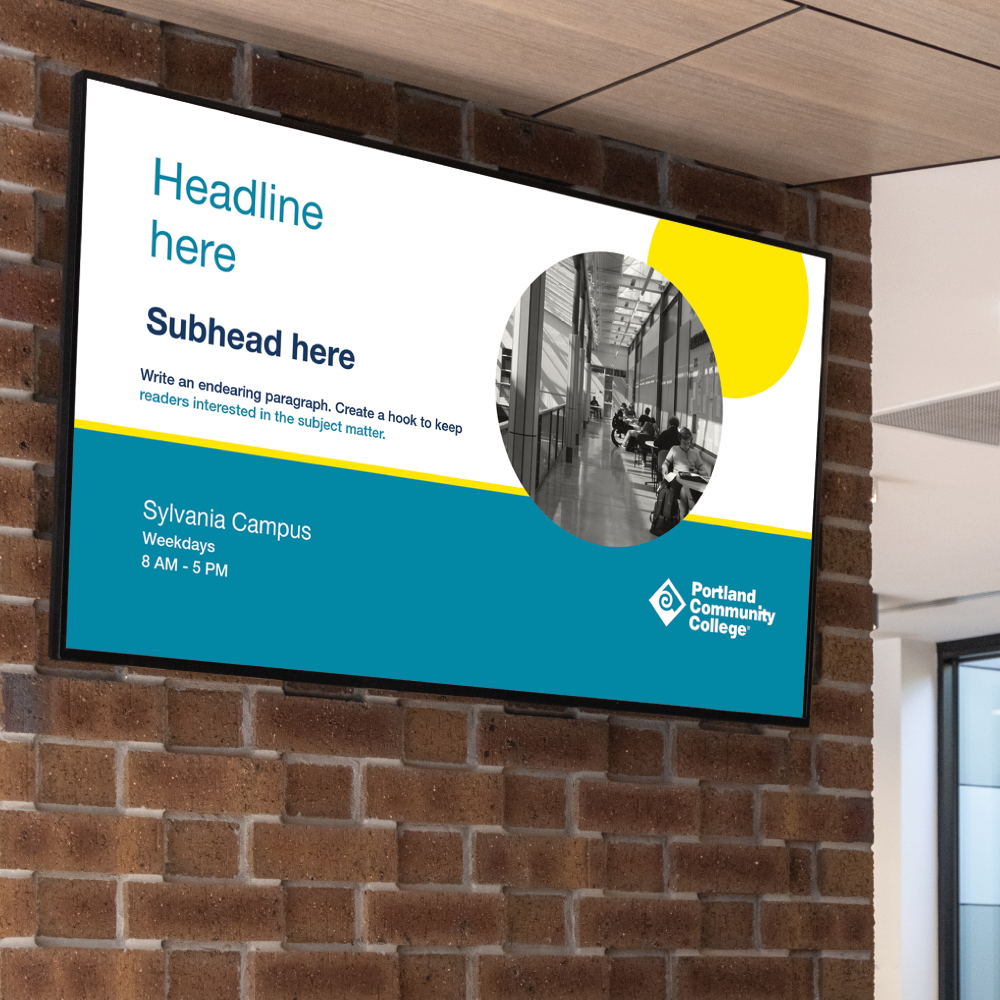
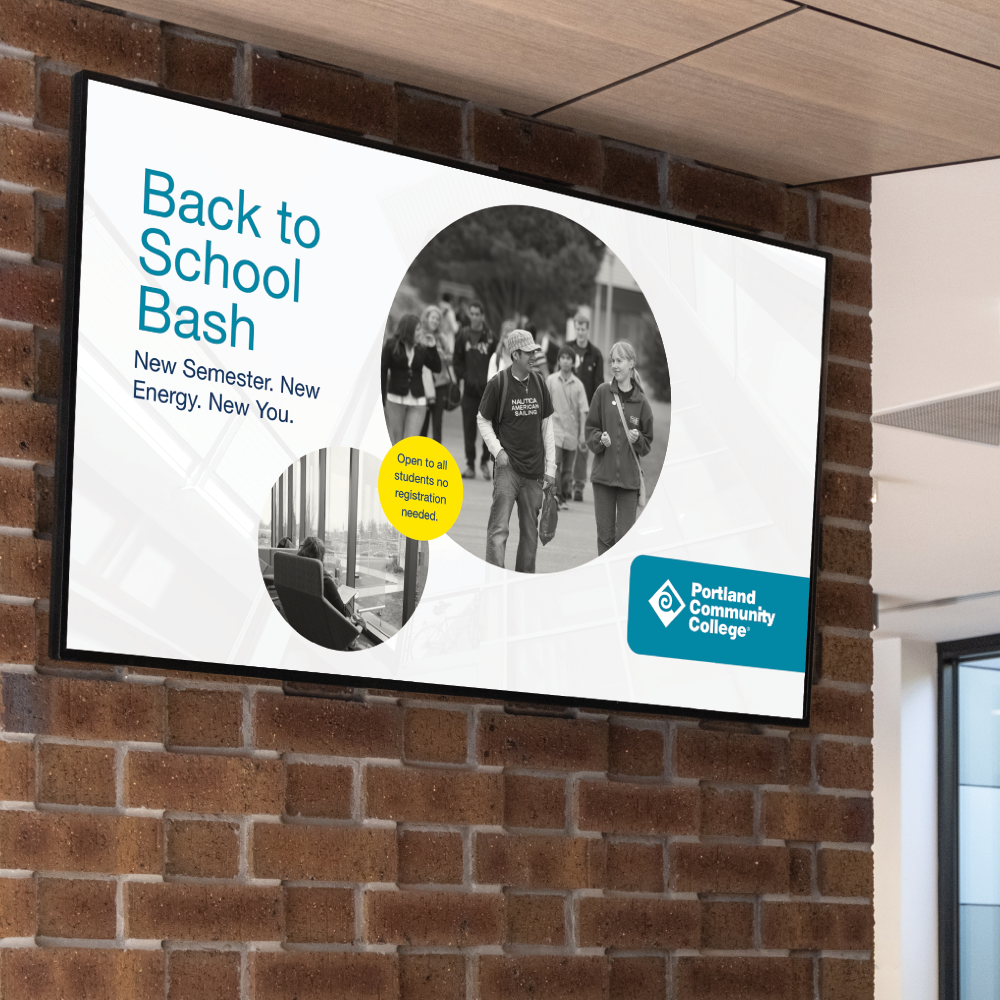
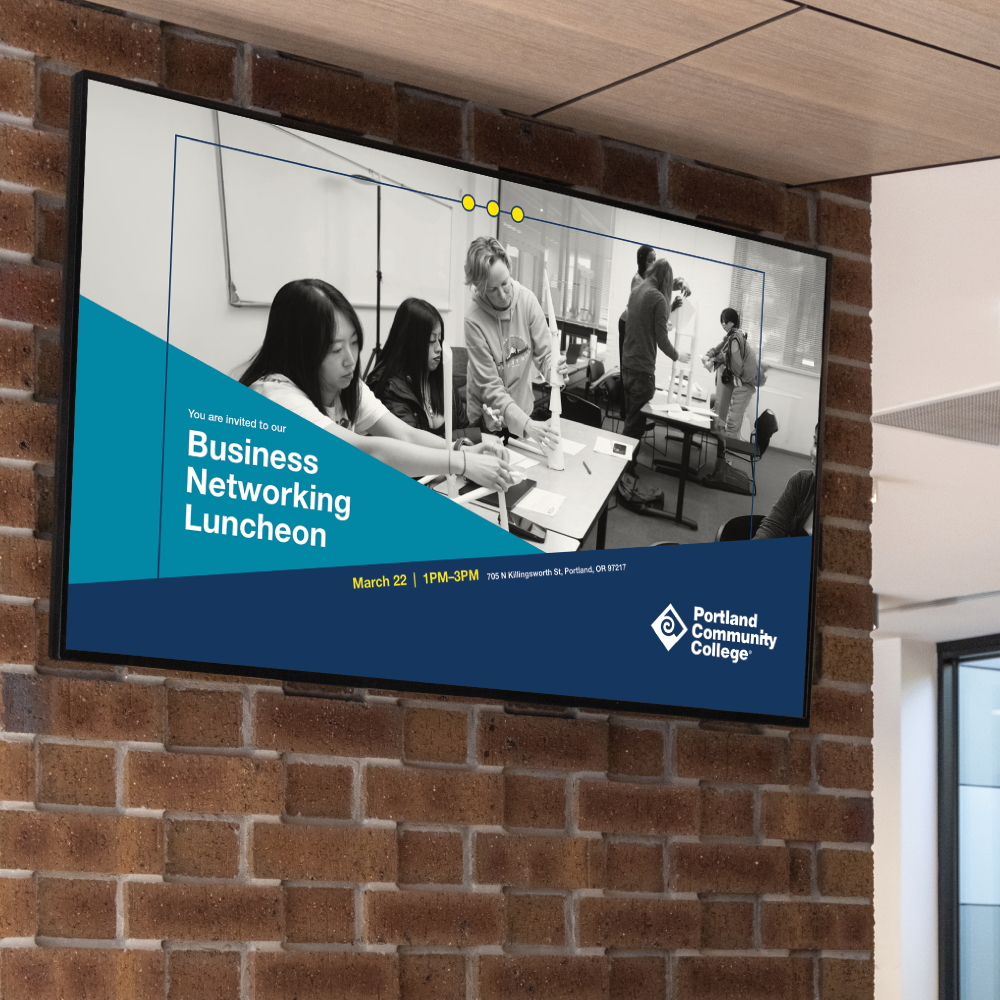
- Digital display ads
- Zoom backgrounds

How to get started
- Access the platform – Visit express.adobe.com.
- Sign in – Enter your PCC email to log in. Now enter your MyPCC credentials to access Adobe Express. You may be prompted to complete multi-factor authentication.
- You may be asked to select “Personal Account” or “Company or School Account.” Select “Company Account” to login.
- Access the PCC brand – Navigate to the brands tab on the left of your dashboard. Click “Browse shared brands” to find the official PCC brand, which includes our approved colors, fonts, graphics and more.
- Please note: Applying the brand will only add colors, fonts and logos. You will still need to edit your design.
- Begin creating – You can begin creating using the range of design templates and creative tools available.
- Add the PCC branding – There are two ways to apply the PCC brand:
- Change the theme – When you open your new document, select “Change theme” in the top navigation and select the PCC brand.
- Apply a brand – When you open your new document, select brands on the left navigation and click “Apply brand.”
- Find in-app help – Click on the “Learn” icon on the left menu bar within Adobe Express for quick tips and guidance.
Accessibility tips
When creating materials, digital or print, it is important to design with accessibility in mind. For helpful tips on formatting emails, presentations and more, please check out these accessibility tips.
Templates
fas fa exclamation circle MyPCC login required for all downloads.
Flyers

Posters
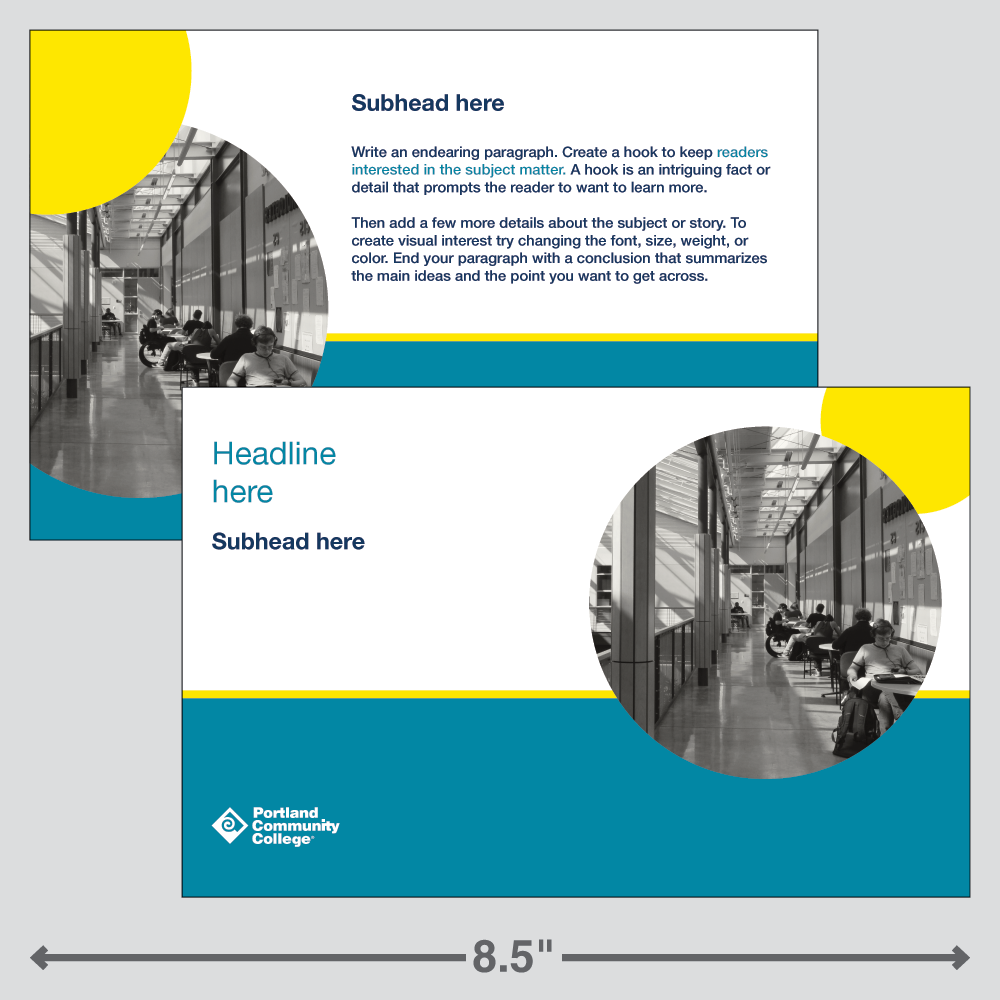
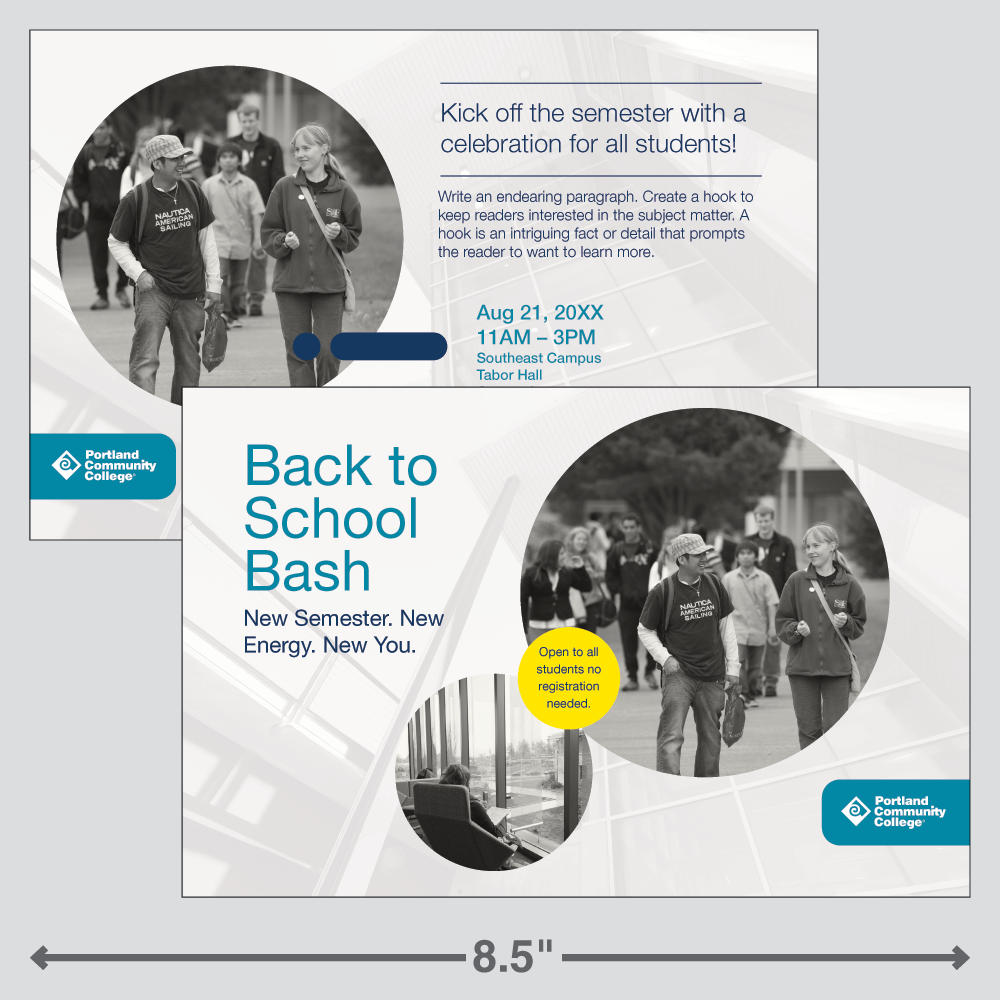
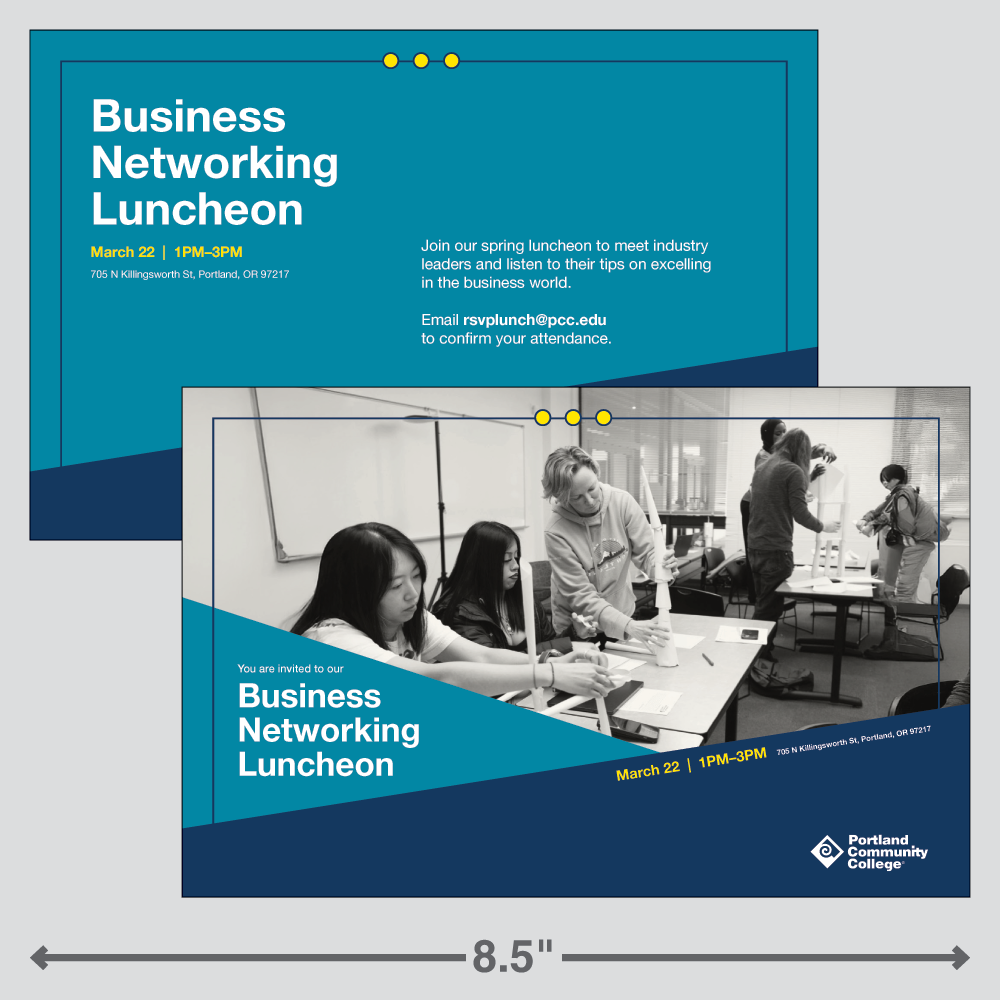
Handout postcards
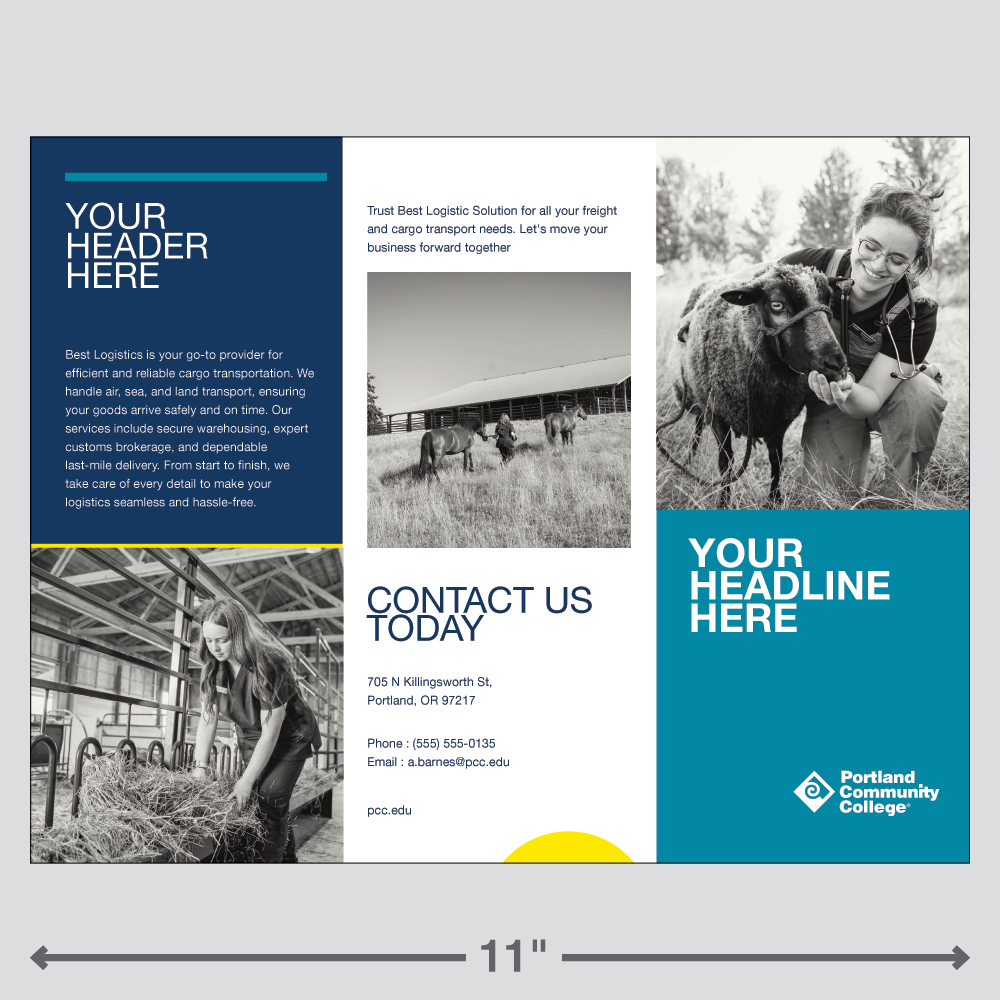
Trifold brochure
Mini zine booklets
Learn how to fold a mini zine booklet by watching the San Mateo County Libraries YouTube video.
Bookmarks
Presentations

Email headers
Google Form headers
Digital display ads
Zoom backgrounds