Online Registration Frequently Asked Questions
Registration Helpline: 503-977-8888
Class Lookup
How do I...
- search by subject code?
- Click on the subject to highlight it. If you want to select courses from more than one subject, arrow down the list and use the 'CTRL' key in conjunction with clicking on the subject. As an example, a student may be interested in finding classes in General Science or Geology
- search by course number?
- Use this feature if you are looking for one specific course. For example, if you are trying to find sections in MTH 111A, select the subject Math and enter the course number 111A. You may use% as a wildcard. For example, for subject Math, 111% would display classes in MTH 111A, MTH 111B and MTH 111C.
- search by title?
- Use this feature if you are looking for a specific title in a subject, but do not know the specific course number. Your entry must match the title exactly, or you may us '%' as a wildcard. For example, for History, %African% will display all History classes with 'African' in the title.
- search by part of term?
- Use this feature if you are looking for classes in a subject in a specific 'part of term'. This option may be useful to find late starting classes.
- search by start time
- This option will only select classes in the subject where all start times are on or after the time you enter.
- search by end time?
- This option will only select classes in the subject where all end times are on or after the time you enter.
- search by days?
- This option will only select classes in the subject that are offered on the day or days you select. For example, if you select Wednesday, it will display those sections offered on Wednesday only or on any combination of days (e.g.MWF) which includes Wednesday.
- search by credit range?
- Use this feature to look only for classes in a subject within a specific credit range. For example, you could look for ART classes that are from 1 to 2 credits.
- search by instructional method?
- Use this feature to look only for classes in a specific mode of delivery. For example, you could look for classes that are distance learning only by selecting 'Web'.
Registering Online
- Who has access to these web services?
- Please see the Registration Schedule for information on when you may register for classes.
- Is a specific browser required for access?
- Visit MyPCC Browser/ISP login issues for more information.
- How do I access web services for students?
- The URL is https://my.pcc.edu. For help, contact the Registration Helpline listed at the top of this page.
- How do I register, add, drop or withdraw from a class?
-
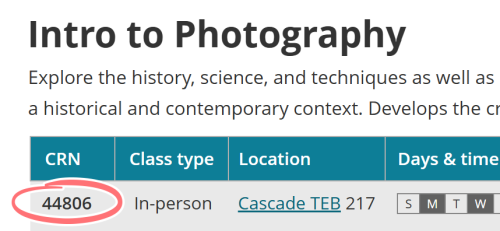
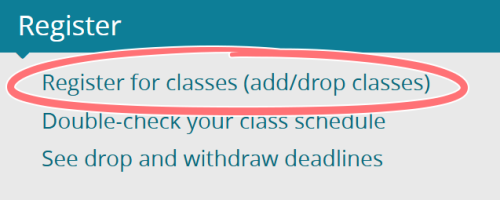
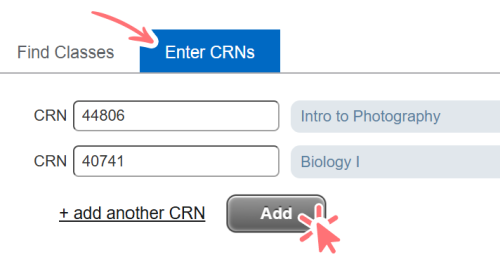
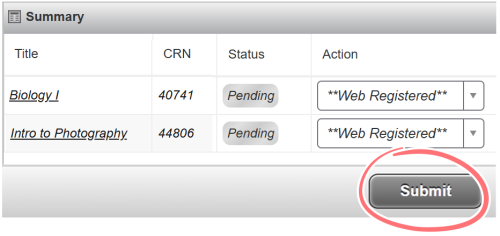
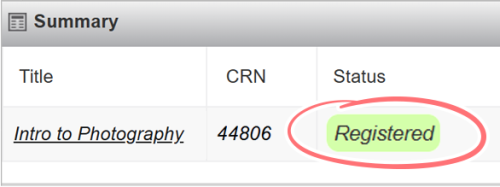
- To register or add a class, enter the CRN (course request number) in the ‘Add Class’ Section. Click submit. Your requests will be processed and the Add or Drop Classes page will redisplay. 'Current Schedule' displays your status in your courses. Any errors display beneath the 'Current Schedule' section. (See registration errors below for more information.)
- To drop or withdraw from a class, select an option under Action in your ‘Current Schedule’. If no drop down box displays, then you are not allowed to make status changes to this class. Make sure to select 'Submit Changes' to process your request. If you have questions, contact the Registration Helpline.
- Some classes are not available for web registration. In this case, you will see the message, "Section not available for Web add/drop". You may contact the department offering the course for further information. Read the instructions carefully... and remember to click on 'Submit Changes' when adding or dropping a class.
- How do I add to a waitlist?
-
- In some cases, you may put yourself on a waitlist for a class when it is full and has a waitlist. You will see a Registration Add message when you submit your request for the class. To add to the waitlist, select 'waitlist' from the drop-down box under Action, and click ‘Submit. You will not be allowed to waitlist for a class if you do not meet the prerequisites.
- No tuition and fees are charged when you are added to a waitlist. Tuition and fees are charged when you become registered in a class.
- What classes are available for web registration?
- Most classes are available for web registration. If you see the message, "Section not available for Web add/drop" then the class is not available for web registration. You may contact the department offering the class for further information.
- I forgot to drop my class, won't the instructor do that for me?
-
- Students are responsible for dropping or withdrawing their classes even if they do not attend.
- When students don't attend or stop attending without formally withdrawing, they will receive the grade assigned by their instructors and will be held liable for all charges on their accounts.
- My class was cancelled after I registered, what happened?
- Sometimes classes are cancelled due to factors such as insufficient enrollment, personnel availability and budget requirements. We regret any inconvenience this might cause, and will do our best to help you adjust your schedule. Be sure and check your courses before the start date.
- I dropped a class before it began but it is showing as drop with no refund, what happened?
-
- It is the student’s responsibility to inquire with the department offering the course as to the refund period on the class.
- Many CEU, CED and SBD classes have varying refund drop periods. In some cases the last date for a refund may be a number of days before the class starts.
- I have registered, will I receive a mailing of this activity?
- Effective for fall 2005 the college will no longer mail class schedules to students who register using MyPCC. Students who use other methods to register will receive a printed class schedule about a week before the term begins. No schedules will be mailed after that date for that term. You can view your schedule electronically at https://my.pcc.edu. If you absolutely must have a paper copy of your schedule, you may request a copy in person at any campus registration office or by calling 503 977-8888 between 9am and 5pm weekdays.
- What are Registration Errors?
-
In the course of using web registration you may see a red button with “X” on the button. This indicates to you that the registration or registration change for a given class was not completed. The registration error message indicates the reason for the error. The possible registration errors are listed on Online Registration Errors.