
Alternative testing management in the instructor portal
Steps for indicating exam preferences
- Visit Accessible Ed & Disability Resources.
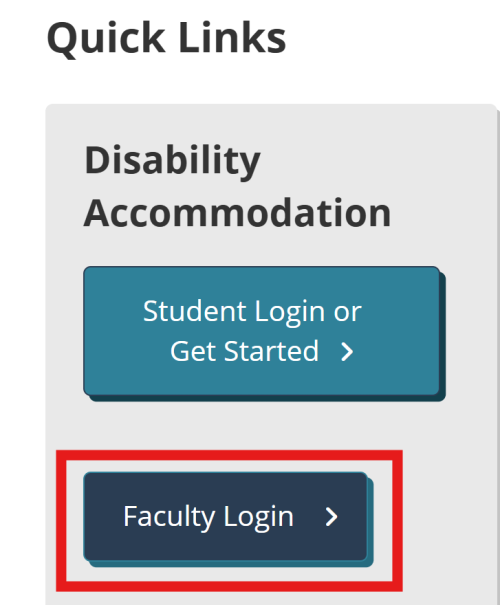
- Under Quick Links, select the Faculty Login button.
- Sign in using your PCC credentials.
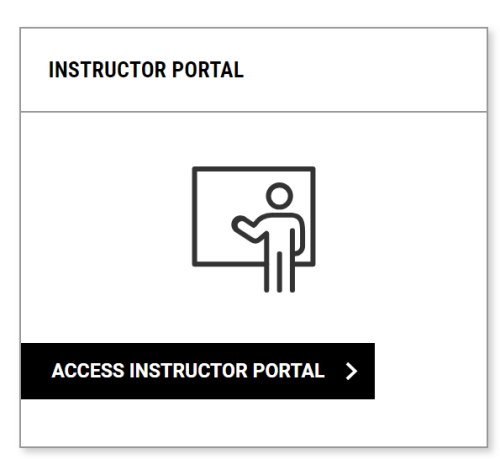
- Read through the Access Policy and select Continue to View Student Accommodations.
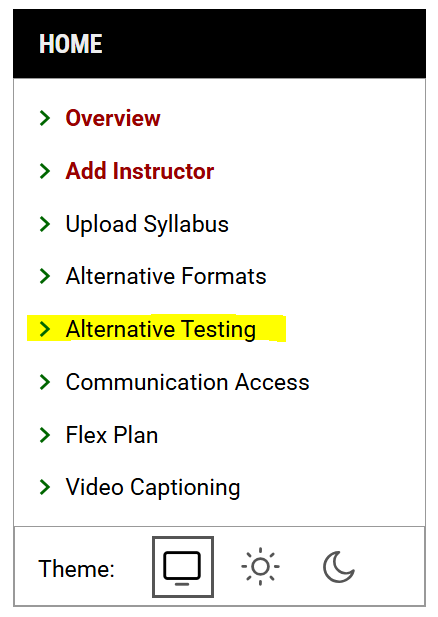
- Select Alternative Testing under the Home menu on the left side of the screen (or menu icon at the top left if on a mobile device).
- Navigate to the Alternative Testing Agreement link at the top of the page.

- Scroll down and select Specify for the class you want.
- Select the appropriate Exam Management Method.
- Under Confirm Task, select Confirm to Proceed.
- Select Submit your Selection
- If you do not need the testing center, you are done.
- If the testing center is needed, proceed with step 11.
- Answer the questions in the Course Information section. This information will not be viewable by students.
- Select Submit and Continue to Specify Exam Dates.
- Under Exam Detail, specify the type, date, and for the first exam/quiz. Please note: this should be the information for the class exams listed in the syllabus. Accommodations will be applied automatically when students submit requests.
- If you have the exam file ready, you can upload it now, otherwise, you may come back and upload it later.
- Select Save Exam Date.
- Follow steps 13-15 for all remaining exams/quizzes in the class.
Modifying an existing testing agreement
- Complete steps 1-6 above.
- Scroll down and select View for the class you want.
- To edit the answers to Testing Agreement Questions, select the Alternative Testing Agreement link, make updates and select Update and View Exam Dates.
- To edit Exam Dates, select List Exam Dates, make updates and select Save Exam Date.
To upload exam files:
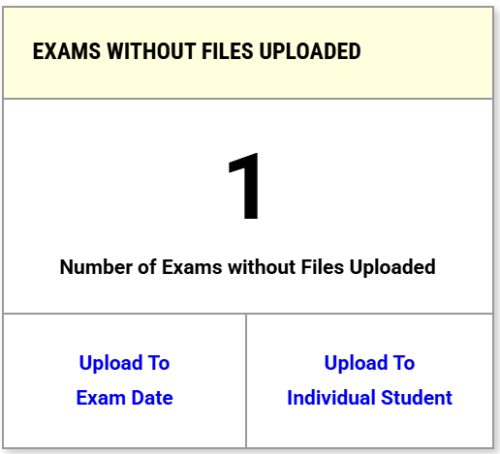
Exam files can be uploaded by Exam date (the same file applies to all students taking the exam on that date) or by individual student (different exam files for each student).
- Once in the Alternative Testing module of the Instructor Dashboard, there will be a section that says “Exams Without Files Uploaded”.
- Select your preferred method and proceed with uploading the exam file to the appropriate exam date or student.
To view a list of upcoming exams scheduled by students
- Complete steps 1-5 from pg. 1 to navigate to Alternative Testing.
- Select Upcoming Exams.

Please contact aedr-feedback-group@pcc.edu with any additional questions. We are happy to help!