
Alternative testing management in the instructor portal
Steps for indicating exam preferences
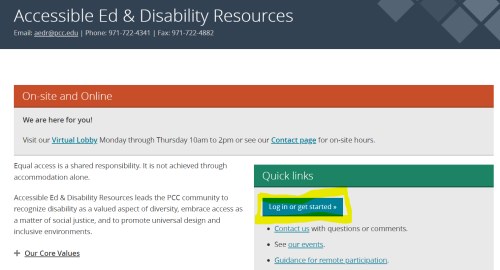
- Visit pcc.edu/disability
- Under Quick Links, select the Log in or get started button
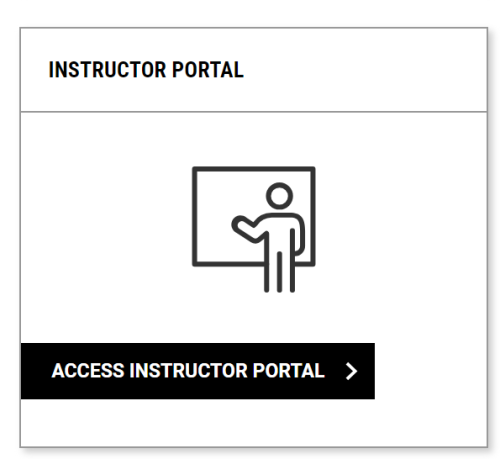
- Select the Access Instructor Portal button
- Read through the reminder and click Continue to View Student Accommodations
- Select Alternative Testing under the Home menu on the left side of the screen
- Navigate to the Alternative Testing Agreement link at the of the page

- Scroll down and select Specify Alternative Testing Agreement for the class you want
- Select the appropriate Exam Management Method
- Under Confirm Task, select Confirm to Proceed
- Select Submit your Selection
- If you do not need the testing center, you are done
- If the testing center is needed, proceed with step 11
- Answer the questions in the Course Information section. This information will not be viewable by students
- Select Submit and Continue to Specify Exam Dates
- Under Exam Detail, specify the type, date, and for the first exam/quiz. Please note: this should be the information for the class exams listed in the syllabus. Accommodations will be applied automatically when students submit requests.
- If you have the exam file ready, you can upload it now, otherwise, you may come back and upload it later
- Select Save Exam Date
- Follow steps 13-15 for all remaining exams/quizzes in the class
Modifying an existing testing agreement
- Complete steps 1-6 above
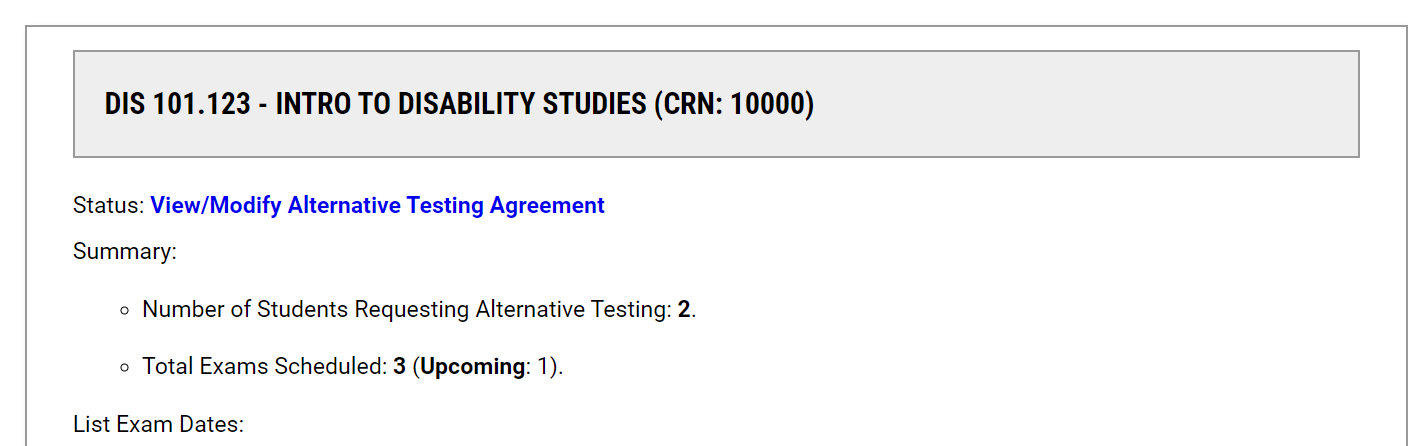
- Scroll down and select View/Modify Alternative Testing Agreement for the class you want
Please contact aedr@pcc.edu with any additional questions. We are happy to help!