
About New Content Experience
Portland Community College (PCC) is transitioning to the New Content Experience in D2L Brightspace. This page explains what is changing, PCC’s planned timeline, and where instructors and staff can find additional information.
Who is this for: All instructors and instructional support staff
What is required: Access to a D2L Brightspace course
What is the New Content Experience?
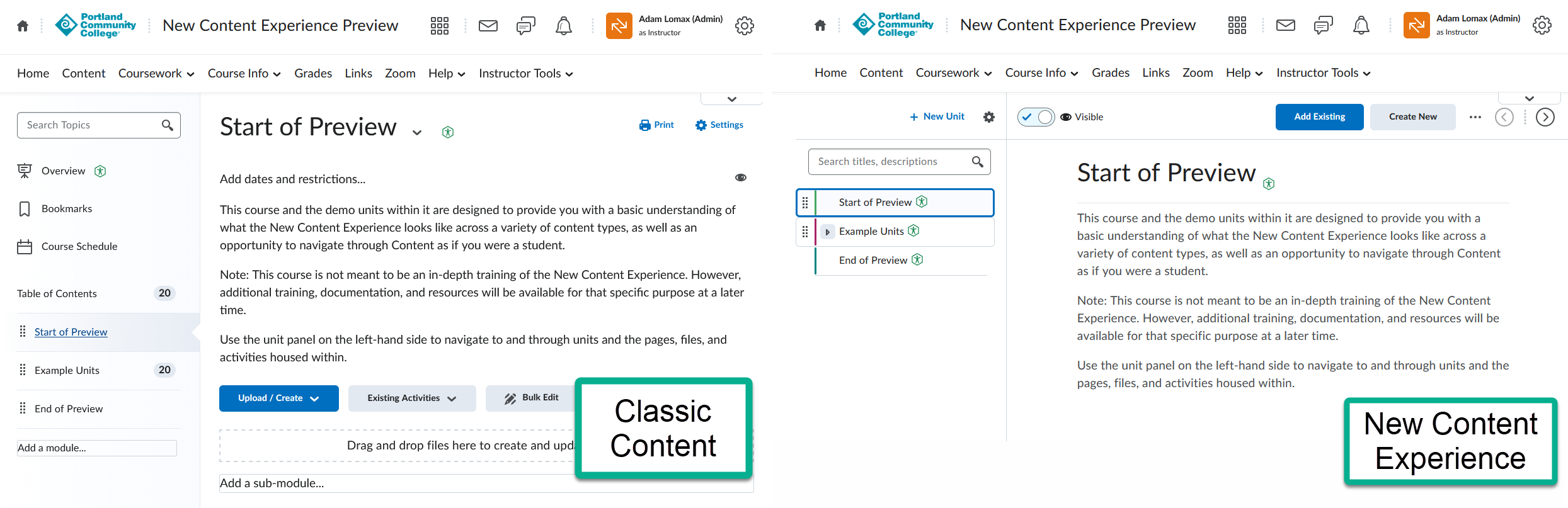
The New Content Experience (NCE) is an updated layout for the Content area of a Brightspace course, where instructors organize and share webpages, documents, media, and learning activities. D2L also refers to this modern interface as simply “Content“.
Existing course materials remain available when a course changes from Classic Content to NCE. The main differences involve how instructors manage content and how students navigate it.
Why is PCC making this change?
D2L plans to make NCE the default content experience in June 2028. PCC is transitioning sooner because it is designed to improve the student experience. Also, it provides time for instructors, staff, and students to become familiar with the updated interface and obtain support before Classic Content is retired.
Read D2L’s announcement about the retirement of Classic Content.
PCC transition timeline
- Winter 2027 (Limited pilot): A small number of Instructors who indicated interest in piloting for the Winter 2027 term will be selected and have their course set with the NCE enabled.
- Spring 2027 (Optional transition): Classic Content remains the default. Instructors and authorized staff can switch the content experience in their courses to explore NCE.
- Summer 2027 and forward (NCE by default): PCC courses will use NCE as their default Content interface.
This is PCC’s current planned timeline and is subject to change. Switching a course’s content experience also changes the view for students in that course.
Preview the New Content Experience
Instructors and staff can self-enroll in PCC’s New Content Experience Preview course to explore example course materials from a student’s perspective.
The course is a short preview with example modules, not comprehensive instructor training. Sign in to PCC’s Brightspace to access the self-enrollment page.
Classic Content and NCE: At a glance
| Feature | Classic Content | New Content Experience |
|---|---|---|
| Organization | Modules and Sub-Modules | Units, Lessons, and Folders |
| Navigation | Module and topic lists, with a separate Table of Contents page | Updated course navigation alongside content |
| Course Overview | Overview area can introduce the course | An existing Classic Content Overview is retained and shown as the first item in the course navigation |
| Topic descriptions | Descriptions can be read before opening a topic | Descriptions for files, links, and other supported non-HTML topics display after opening the topic; Web/HTML page descriptions are not currently displayed |
| Learning activities | Assignments, quizzes, and discussions can be linked within Content | The same activities remain available, with updated navigation and presentation |
| Progress | Topic completion indicators | Completion and progress indicators in the updated navigation |
What should instructors and students expect?
Instructors and staff: Course materials do not need to be rebuilt just to switch interfaces. However, creation and editing controls are located differently, and instructors should review how their existing course pages and descriptions appear in NCE.
Students: The Content area will look different, but students can continue accessing course materials and linked learning activities. Navigation, completion indicators, and some download or print options will change.
Note: Students cannot change their own Content view. The Content experience is set for the entire course by an instructor or authorized staff member, so students see whichever experience is enabled for that course.
Resources
For more detail, visit the following pages:
- PCC New Content Experience Preview course — Explore the student view through example modules.
- PCC D2L Brightspace tutorials — Find existing PCC instructional support resources (we are currently updating our documentation to include NCE-specific steps).
- D2L: Content vs. Classic Content — Learn more about the interfaces.
- D2L: Intent to End of Life Classic Content — Read the product timeline.
Get support
Instructors and staff can use either of these PCC support options:
- Learning Technology Help Desk provides assistance with D2L Brightspace and other learning technologies.
- Schedule a one-on-one appointment with an Instructional Technology Specialist — Get individualized help with course content, instructional tools, or the transition to NCE.
This page will be updated as additional guidance becomes available.