
How to import the AI Training Module for Students for your course
This student-facing module introduces artificial intelligence and offers guidance on its use in education. The content provides:
- A brief overview of what AI is
- Key ethical considerations
- Suggestions for when to use AI — and when not to
- Important cautions about relying on AI for learning
You can adapt this module to best meet the needs of your students and course.
Download the Course Package
- Download the AI Training Module zip file.
Import the Package into D2L Brightspace
- Select Instructor Tools from the top navigation bar.
- Select Course Admin.
- Select Import/Export/Copy Components.
- Select Import Components at the bottom of the list, then select Start.
- Upload the course package zip file you downloaded from Google Drive, then select Import All Components.
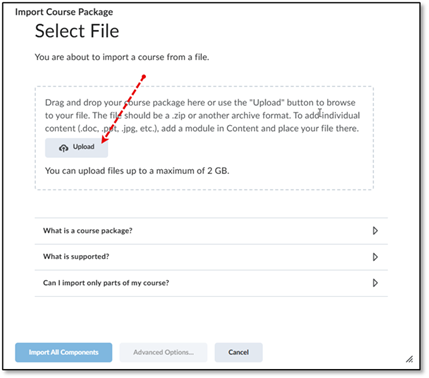
- The import process will run in the background and you will receive a notification once it completes.
Once the import has completed, you will see it in the Content area. You can move it to the appropriate location in your content by dragging it to the right place.
Special thanks to Debbie Austin for developing this module and sharing it!
Last updated: Sep 18, 2026