
Using the Language Tag Widget
This page shows how to use the custom Language Tag Widget to quickly set a language definition on all HTML pages in your course.
- What is required: Instructor access to a D2L course that is in English.
Steps
- Click on Instructor Tools, then Course Admin in the navbar
- Select Widgets
- Click the Preview button next to the Language Tag Widget.
Tips: You can resize the widget by dragging it a little bit to the left and then using the resize button at the bottom right to expand. - Review how many documents need the language tag added
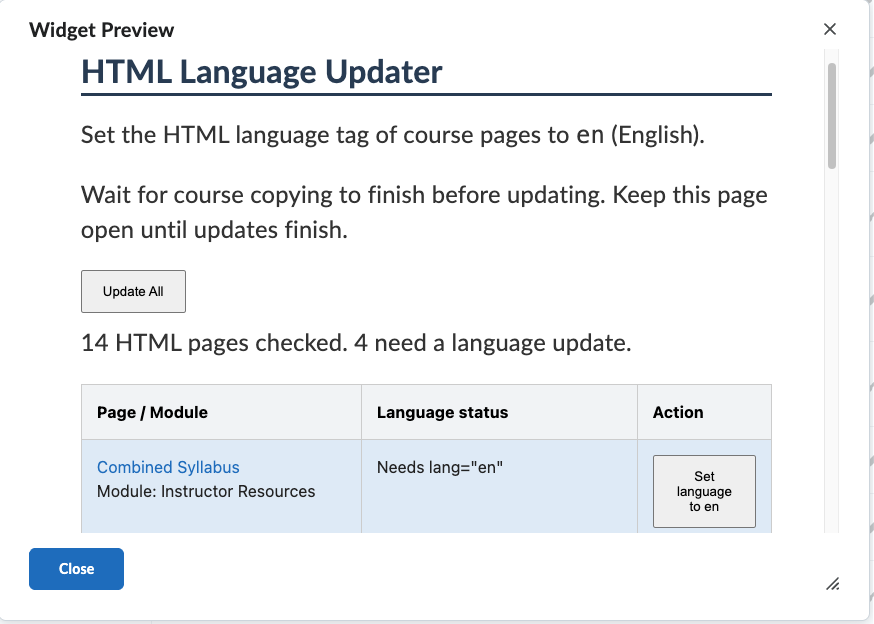
- Click the Update All button, or click the Set language to en button for individual files.
Note: doing this action will add <html lang=”en”> attribute to define the primary language of this HTML document is English. - Review to see if there are any errors.
- Click on the Close button.