
Caption Kaltura video
Caption your video recording
Your video will automatically captioned in English using automatic captions generated by machine. Depending on the length of the video, it should process the captions in less than 1 hour. Media without dialogue (i.e., instrument or soundtrack) will not be caption and will show “Error status.”
Automatic caption aren’t the same as human transcription, so you may need to revise and edit them to ensure they are 100% accurate. Captions can be easily edited or added to any videos in your My Media library.
Edit Captions
To view the automatic English captions in one of your videos:
- Go to My Media link from the D2L Homepage navbar
- Find the media title that you want to edit captions for
- Click the Edit “pencil” icon, just to the right of the View Analytics icon

- On the Captions tab, automatically generated English captions should be available. Accuracy may not be 100%, so we recommend that you Edit Captions when possible.
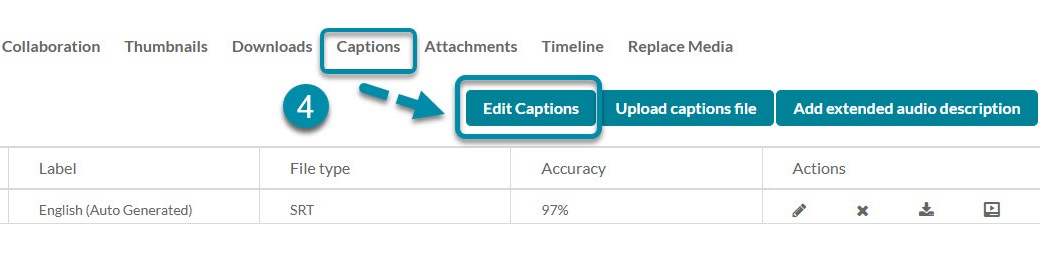
Follow the instructions on how to edit captions.
Upload captions file
You can upload caption files for media that you own or have editorial privileges as a collaborator. If this option suits your needs, follow the instructions on how to upload captions file.
Create New Captions
We do not recommend choosing this option unless you already familiar with creating your own caption.
Note: For help with creating or editing captions in Kaltura, please contact Online Faculty Helpdesk (971-722-8227, Email: dlhelp@pcc.edu). These videos must be self produced and meant to be used more than three terms.
Updated 08/31/2026