
How to Enroll an Unenroll from a course in the Discover Tool
This page is intended for Learners or Students who want to learn how to enroll in a course that is available within the Discover tool.
- Who is this for: Staff and students
- What is required: A D2L Brightspace account
Enrolling in a Course via Discover
To join a course in the Discover tool:
- Log in to D2L Brightspace.
- Click the Discover tab on the homepage.
- Browse through the Featured, New, or All sections, or use the search bar to find a specific course (e.g., Digital Literacy Fundamentals).
- Click the course title.
- Select Enroll in Course or Open Course (depending on your Brightspace role).
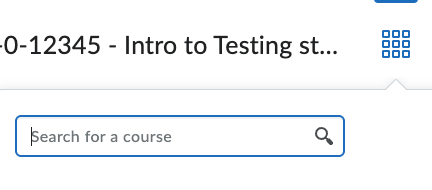
- You will now have access to the course from the Course Selector (waffle) at the top of the page. You may need to search for the name if you are enrolled in a lot of classes.
Unenrolling from a Course
Note: You can only un-enroll from courses you joined through self-enrollment. If you were added to the course by the course owner, the unenroll option described below will not be available.
To unenroll from a Discover course:
- Log in to D2L Brightspace.
- Click Discover on the homepage navigation bar.
- Find the course you want to leave.
- Use the Sort drop-down menu to filter by “Already Enrolled.”
- Click the course title to open its page.
- Click the three dots icon (⋯) next to the Open Course button.
- Select Unenroll from the drop-down menu.
- The course will be removed from your account.
Get Additional Support
- If you have trouble enrolling or unenrolling in a course within the Discover tool, please contact the Learning Technology Help Desk.