
Panorama

Panorama is a digital accessibility platform designed to help instructors develop more accessible content for their courses. Panorama functions almost exactly like Ally. It automatically generates accessibility scores and provides guidance on improving the accessibility of documents in D2L. It allows downloading content in alternative formats such as audio podcasts and epubs.

Panorama – Getting Started Video
Requirements
The only requirement is access to Brightspace our LMS. Panorama is automatically active on all courses in Brightspace, and Instructors will have access to the Dashboard through the Brightspace Navbar
Panorama Quickstart
Accessibility Gauge
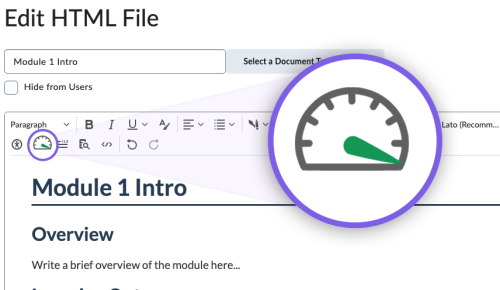
The Accessibility Gauge is located in the toolbar anywhere content is editable within Brightspace. The gauge provides real-time feedback and an “Accessibility Score” based on common accessibility issues. Clicking on the gauge opens the Accessibility Report sidebar where you can view and fix the issues by clicking a “Fix Issue” button.
The same accessibility scores are also visible next to Content Topics and other items in your course. Clicking on any of these Score Icons opens the Accessibility Report for the item.
The following icons identify the accessibility scores:
 Hexagon, Green: 70% or more
 Triangle, Yellow: 30% to 69%
 Octagon, Red: 0% to 29%
 Timer, Gray: Pending or not scanned
 Circle Backslash, Gray: not available (the document has not been scanned or cannot produce an accessibility score)
Note: Scores are visible to the Instructor even when using “View as Student”
Accessibility Report
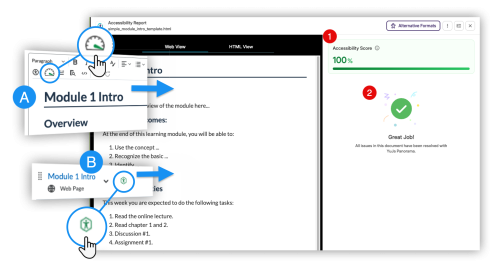
The Accessibility report can be accessed from the Accessibility Gauge anywhere content is being edited (A), or from the Score Icons next to items in Brightspace (B). The Accessibility Report is where you can view and fix issues with your content. It will function slightly different while editing content or for different types like HTML pages or PDF files, but these differences are small. The Accessibility report has up to three sections:
- The Accessibility Report panel provides the user information about the score and list of issues found in the document.
- The Review Issues section lists the issues identified in the content and allows users to fix the issue (Fix Issue button) or find more information on how to fix the issue if an automatic fix is not possible (How To Fix button).
PDF Remediation
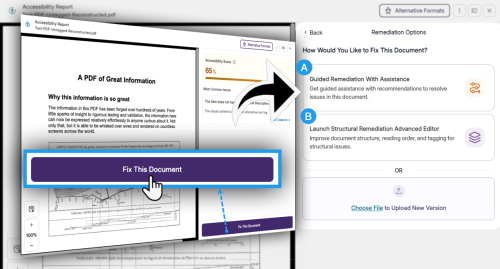
The PDF Remediation options can be accessed from the Accessibility Report of a PDF. Click “Fix This Document” to show the two PDF Remediation options:
With the Guided Remediation With Assistance (A) you can:
- Search and filter issues with the document
- Review and Apply fixes to the issues with the document
- Access Help Guide documentation on the issues if available
With the Structural Remediation Advanced Editor (B) you can:
- View and Edit the Reading Order of a PDF
- Edit tags within the PDF
Working with PDFs can be complicated. We have several more in-depth guides in the Panorama Guides section below.
Course Reports
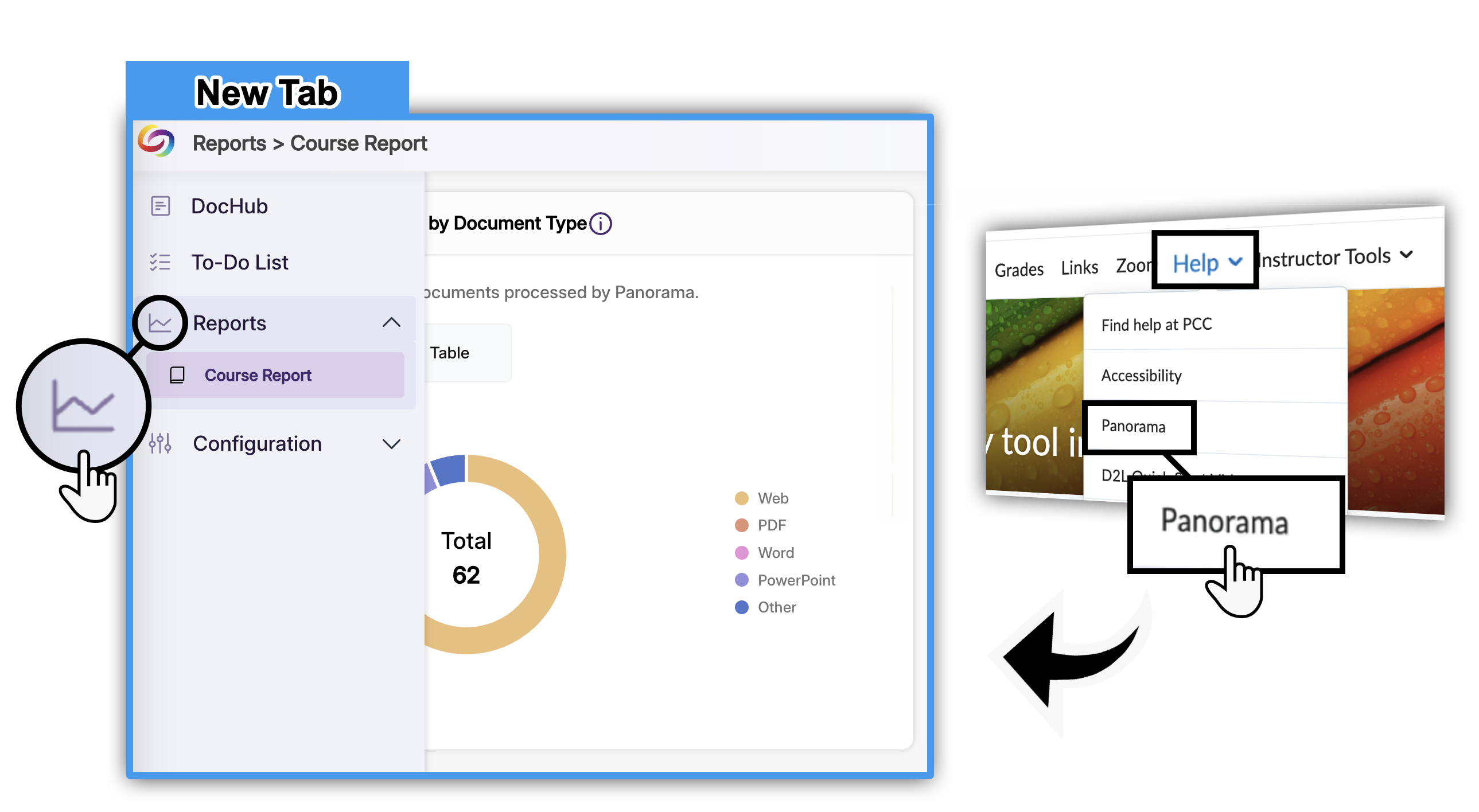
Find the Panorama Dashboard link under Help in the Navbar. Course Reports are available in the Dashboard via the bar graph icon.
You can find the Panorama Dashboard under Help in the PCC Default Navbar. If you are using a different navbar contact an ITS about how to add the Panorama dashboard link. From the dashboard, instructors may view course reports and adjust settings for their courses. Below is a breakdown and overview of each section and the features available for instructors.
- Overall Accessibility Score: The overall accessibility score for your courses.
- Total Files Processed: The total number of files processed for the selected course.
- Files Improved Using Panorama: The total number of files improved when using Panorama’s Accessibility Reports within a course.
- Alternative Formats Downloaded: The total number of alternative formats downloaded.
- Files Processed By Document Type: Filter by type of file like a Web Page or PDF.
- Alternative Formats Downloaded by Format Type: Filter by type of file like Web Page of PDF.
Reprocess Course
You’d typically click Reprocess Course if:
- You’ve added or updated a lot of content
- The course’s accessibility score seems outdated or incorrect
- You want to ensure everything is re-evaluated from scratch
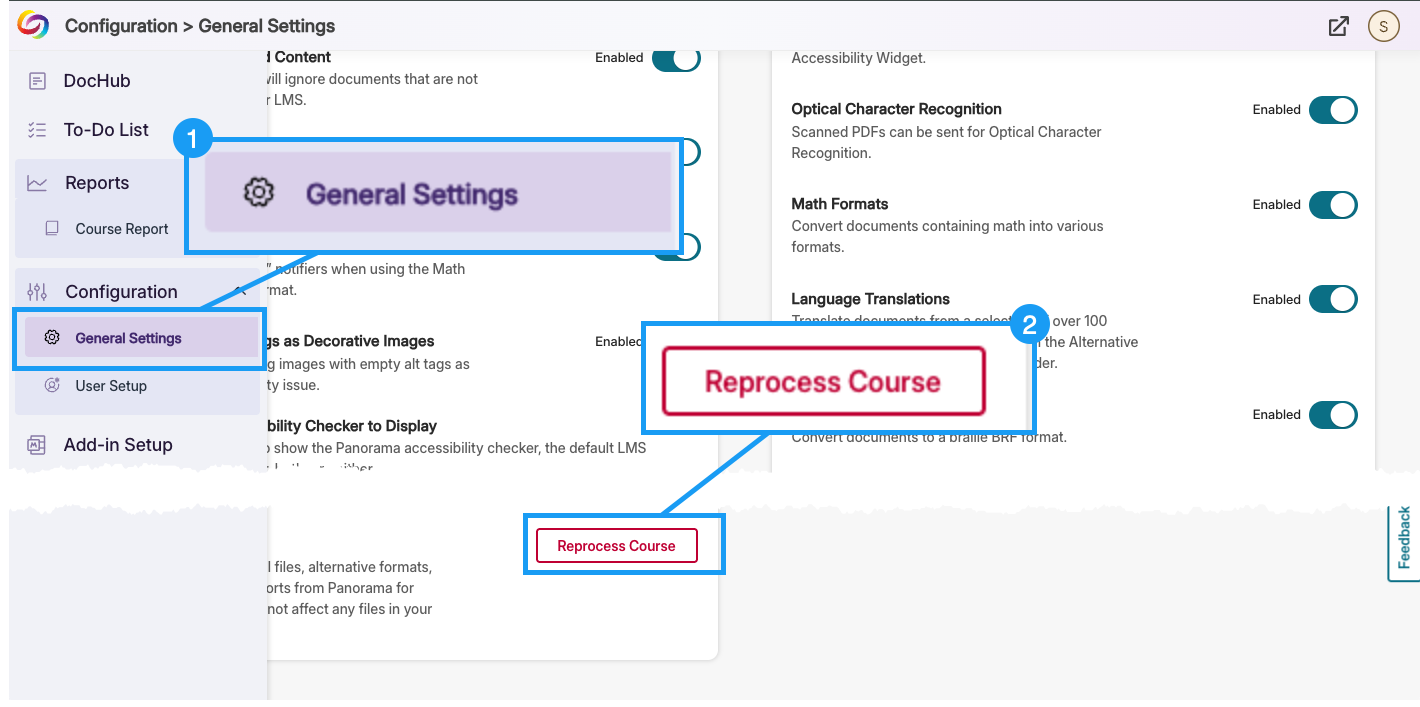
To Reprocess your course:
- From the Panorama dashboard, go to Configuration → General Settings in the left sidebar.
- Scroll down to find the Reprocess Course button
- You will need to type Reprocess to confirm the action.
Alternative Formats
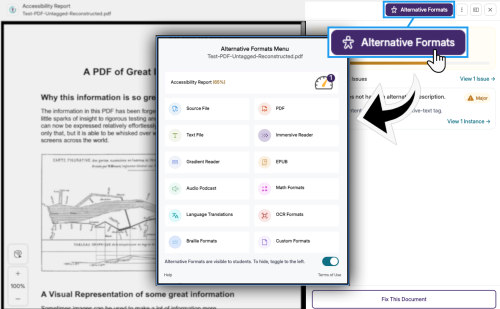
The Alternative Formats Menu is accessed by clicking the Alternative Formats button in the Accessibility Report for the associated content. For instructors you can see a concise Accessibility Report with a link to open the full Accessibility Report. Students can not see the report but have a similar Alternative Formats Menu. You can use this menu to generate, convert and download different types of content such as HTML to EPUB or OCR a PDF. Some formats allow low distraction ways to view the content. Here are some of the available alternative formats:
- Original, PDF, Word and Text Formats: View documents in their original, PDF, or plain text formats, suitable for both online viewing and downloading.
- Customizable Readers: Use Immersive Reader for text preferences and audio playback, Gradient Reader for visual assistance, and Braille for tactile reading (requires braille reader).
- Ebook Format: View or convert documents to EPUB format for ebook readers.
- Audio: Listen or convert documents to audio.
- Enhanced HTML: Customize document appearance in a dedicated tab using HTML.
- OCR Tools: Convert images to machine-readable text, tagged PDFs, DOCX, HTML, or audio, suitable for screen readers and text extraction. Very useful for working with PDFs.
- Math Formats: Convert documents with equations into LaTeX, Math Text, MP3, or MathML.
- Language Translation: Translate documents into over 100 languages for download. Similar to Google Translate.
Important note about the Accessibility Report scores
Panorama is a tool to identify and fix digital accessibility issues. Automated accessibility checkers can only evaluate about 30% of all WCAG 2.1 AA requirements. A high score does not guarantee accessibility, and a lower score does not necessarily mean content is inaccessible.
Panorama Guides
- Checking individual files with Panorama
- Creating Accessible Content (for web, D2L Brightspace, MS Office, Google Suite, PDF, etc.)
Optional Guides
Panorama Resources
Support
Contact an ITS to schedule one-on-one training.
updated 9/25/2025