
Uploading Media to My Media / Kaltura
Kaltura is one option you can use to upload and embed videos in D2L Brightspace. You can embed the videos you edit into assignments or discussion posts while avoiding public video sites like YouTube.
- What is required: access to PCC’s D2L (online.pcc.edu)
- a device with a modern web browser (Chrome, Safari, Firefox)
- a webcam or integrated camera (laptop, tablet, phone, etc.)
- a video file previously captured and saved on your computer works
Steps
- Log in to D2L Brightspace.
-
Click on the My Media link from the D2L Brightspace Homepage navbar. The homepage is the first page you see when you log in to D2L Brightspace.
- If it’s your first time accessing it, you will see a confirmation screen. Check the box for “Do not ask me again for this application” and click the Continue button.
- Click the Add New button and select Media Upload.
- Choose webcam to capture video live using your integrated camera (Laptop, tablet, phone).
-
If you’ve already recorded the video, click the Choose a file to upload button. You can also drag and drop the file into the dotted rectangle area.
-
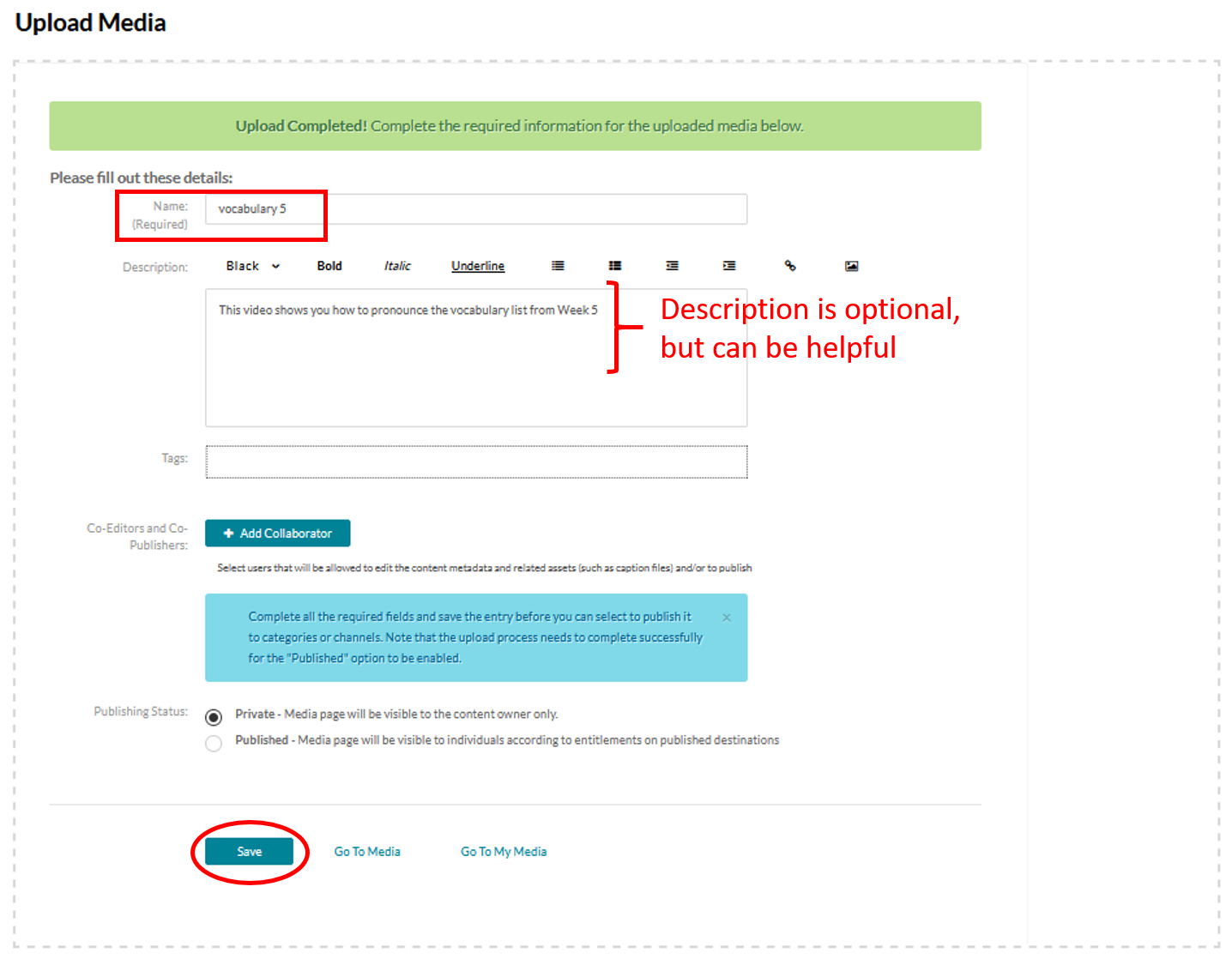
After the file is uploaded, be sure to enter a descriptive name (e.g. WR122 assignment) and include a description. These will make the video easier to find later.
-
- If you are using your webcam
- Approve using your Camera and Microphone.
- Choose the correct camera and microphone from the dropdown menus.
- Click the red circle button to start recording the video.
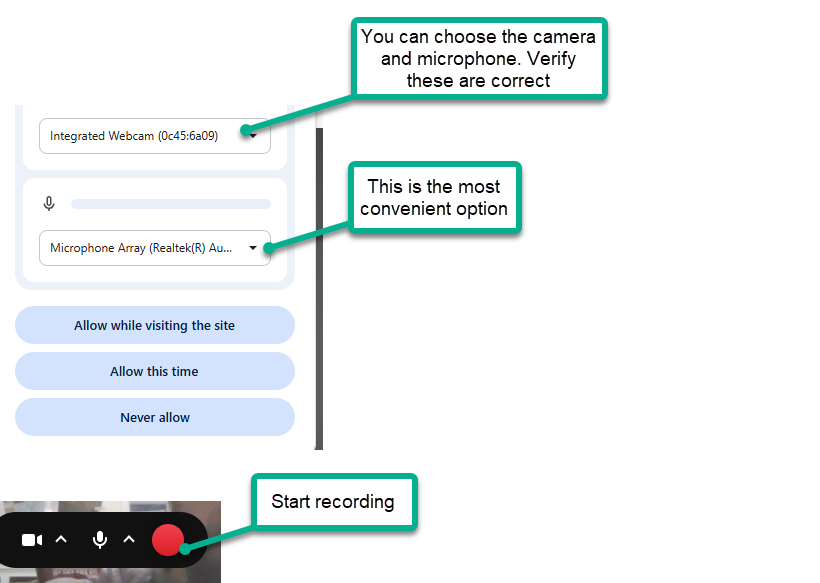
- When you are done recording, click the Save button
- Your video recording may not be available right away. You may need to come back later after it has been processed.
Once your video is ready, check and follow the guide to Embed from My Media using Insert Stuff.
Note: Kaltura will automatically caption your video after it’s been processed. This process usually takes 1 hour or less. Since these captions are machine-generated, you may need to edit them to make sure they are 100% accurate. You can add captions to any video in your My Media library.