
Sharing Kaltura video
There are 2 different ways you can share your Kaltura video:
- Share within your D2L Brightspace course
- Share outside of D2L Brightspace course
Post the recording to your D2L Brightspace course
Add a video to your course
You have 2 options to add a video to your course:
- Embed it to a new html page (follow Option 1 and Option 1a)
- Embed it to an existing html page (follow Option 2 and 2a)
Share a video outside of D2L Brightspace
You can also share your videos outside of D2L Brightspace. When doing this, you do give up some control over where it is displayed. However, this is only important when you have copyright or privacy concerns. You may also lose some of the tracking information about video usage.
- Click on My Media from the D2L homepage.
- Find the media you want to share and click the Edit icon.

- Click the Play button to start the video and reveal the player controls.
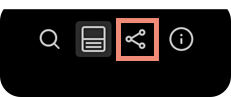
- Pause the video, then click the Share icon at the top-right.
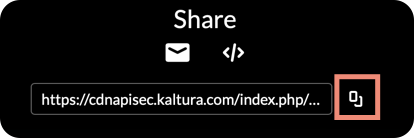
- Click the Copy URL button to copy the share URL to your computer clipboard. You can paste the link into a document or other content to give access to the video outside of D2L Brightspace.
Note: YouTube videos added to your Kaltura My Media library will not be shareable outside of D2L Brightspace. Consider using the YouTube video URL if it has human-generated captions.
Updated on 6/24/2026