
Adding Graded and Ungraded H5P Activities to D2L
Use this guide to create or insert H5P activities in D2L Brightspace and decide whether scores should be sent to the D2L Brightspace course gradebook.
Before you begin
Every PCC instructor with access to D2L Brightspace has access to H5P. The PCC H5P portal is available at https://pcc.h5p.com/. In Brightspace, create and insert H5P activities from the Edit HTML toolbar using Creator+ Authoring Tool, then H5P Interactives.
Before choosing an H5P content type, review the Content types recommendations and accessibility guidance. Choose content types that are accessible, actively maintained, and supported. Avoid unsupported or crowd-sourced content types unless you have confirmed that they meet accessibility needs.
If you are copying a course that contains H5P activities created by someone else, you and your learners may be able to use the activities, but you may not be able to edit them. If you need editing permissions, contact the original creator or email dlhelp@pcc.edu. Include the course URL, activity title, and the permission you need.
- What is required: A D2L Brightspace course in which you would like to include an H5P activity
Create and Insert an H5P Activity in Content
- Open the Brightspace content page where the activity should appear.
- Select Edit HTML.
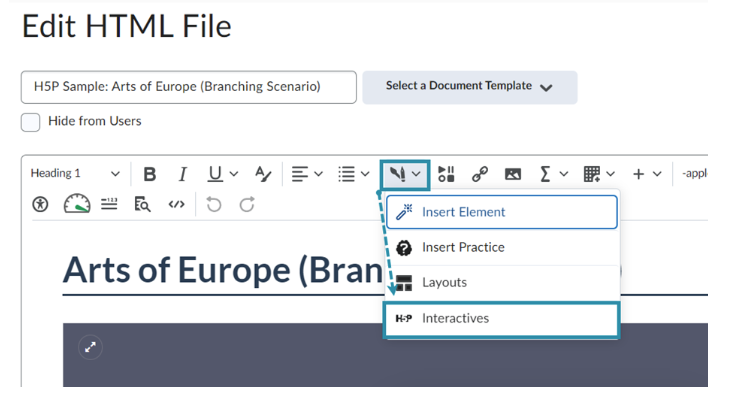
- In the toolbar, select the Creator+ Authoring Tools icon and select H5P Interactives. Note: Do not use the H5P option under Insert Stuff.
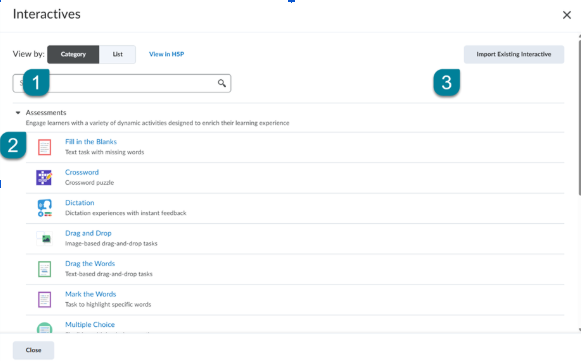
- On the Interactives screen, use Category or List view to locate an activity type, select View in H5P if you need to manage activities in the H5P portal, or select Import Existing Interactive to reuse an existing activity.
Choose whether the activity is graded
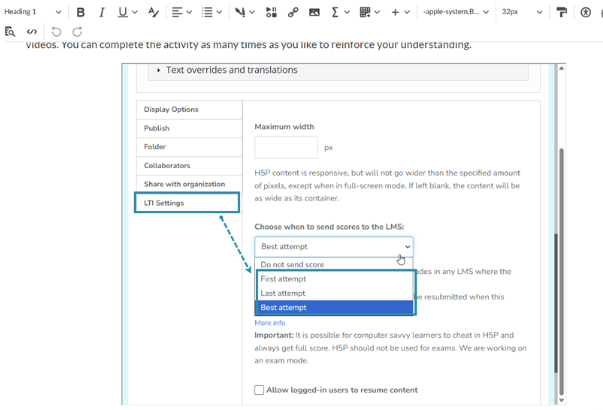
In the H5P LTI settings, choose how scores should be sent to Brightspace:
- Ungraded activity: Select Do not send score.
- Graded activity: Select First attempt, Last attempt, or Best attempt, depending on how you want Brightspace to receive the learner score.
Important: If the same H5P activity is used across multiple courses, modules, or pages, changing the score setting can affect all instances of that activity. Clone the H5P activity first if you need a graded version in one location and an ungraded version in another.
Set up a graded H5P activity
- After selecting a graded score option, insert the H5P activity into the HTML page and save the page.
- Use View as Student to complete the activity. This can trigger the Brightspace grade item. A grade item may also be created after the first learner attempts the activity.
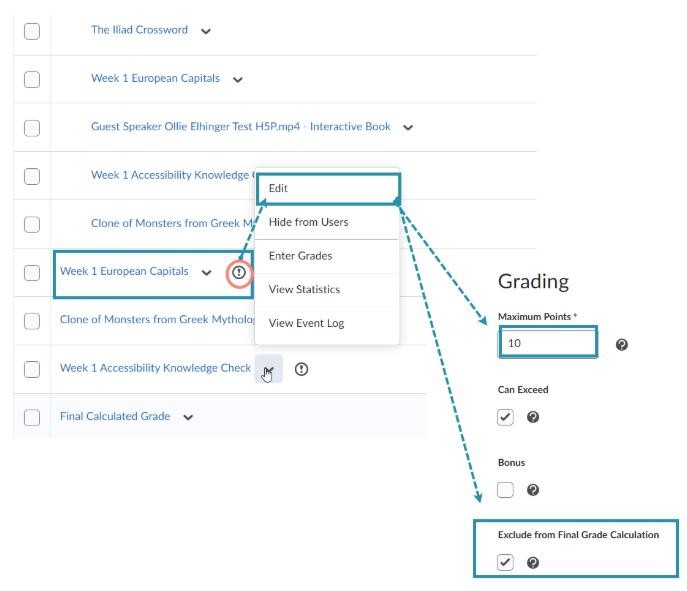
- Open Grades, then Manage Grades, and review the new grade item. By default, the item will be worth 10 points, excluded from the final grade calculation, and marked as an External Learning Tool item.

- Edit the grade item as needed. Confirm the point value, grade category, visibility, and whether Exclude from Final Grade Calculation should remain selected.
Make an existing H5P activity ungraded
Use this process when an H5P activity is connected to the gradebook, but should no longer send a score. Complete these steps before deleting grade items.
- Open the HTML page that contains the H5P activity.
- Edit the H5P activity and change the LTI setting to Do not send score.
- If the activity is reused elsewhere, clone it first, then change the setting only on the cloned version.
- Save the activity and the Brightspace page.
Remove the gradebook association and delete the grade item
You can only delete Brightspace grade items that are not still associated with an activity. If the item cannot be deleted, remove the external tool association first or contact an ITS for assistance.
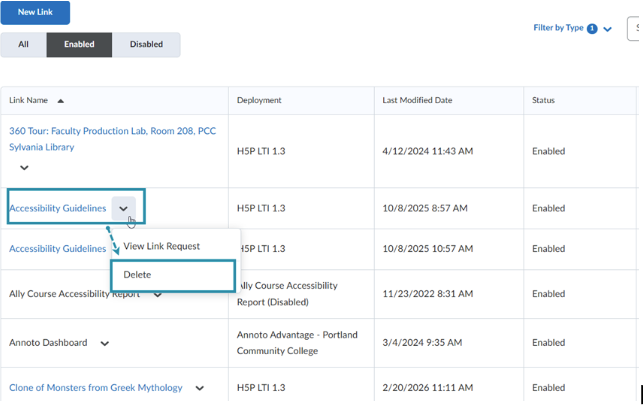
- In Brightspace, go to Course Admin, then External Learning Tools.
- Find the external learning tool link for the H5P activity, open the drop-down menu, and select Delete.
- Return to Content and open the HTML page that contains the H5P activity.
- Edit the page in Source Code view and remove the old H5P embed or HTML entry for the activity.
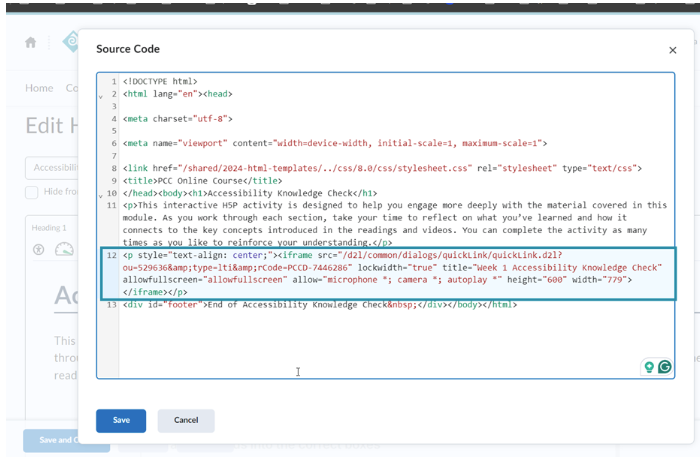
- Reinsert the activity using the Creator+ Authoring Tools option, then H5P Interactives, then click Save to the page.
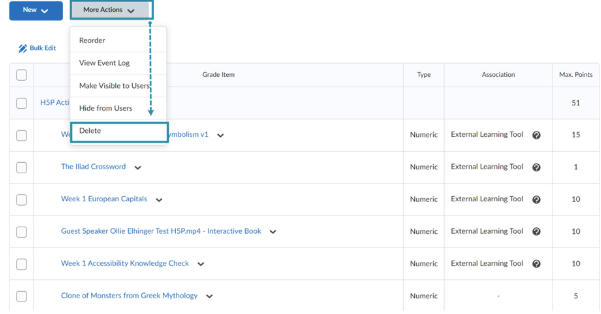
- Go to Grades, then Manage Grades.
- Select More Actions then Delete.
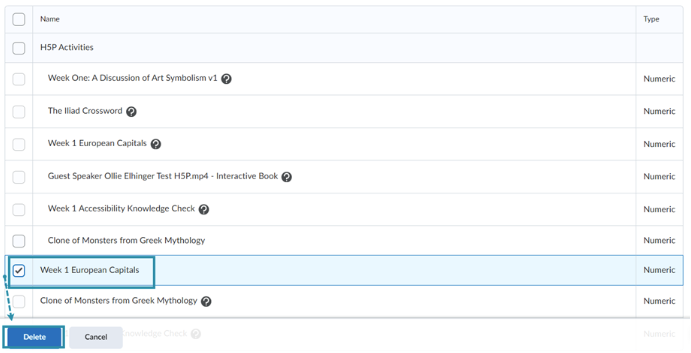
- In the Delete Grade Items and Categories window, select the grade item, then select Delete.
Troubleshooting
- If you cannot edit an H5P activity, you may not own it. Contact the creator (owner) or email dlhelp@pcc.edu with the course URL and activity title to request editing access.
- If the grade item cannot be deleted, confirm that the H5P activity is set to “Do not send score” and that the External Learning Tool link has been removed.
- If a graded activity is not appearing in the gradebook, complete it in View as Student or have a test learner attempt it, then check Grades, then Manage Grades again.
- If you are unsure whether changing an existing activity will affect other courses, clone the activity before changing score settings.
Final checklist
- The activity uses an accessible, supported H5P content type.
- The LTI score setting matches the intended use: Do not send the score for ungraded activities, or send the First, Last, or Best attempt for graded activities.
- The Brightspace grade item has the correct point value, category, visibility, and final-grade calculation setting.
The activity has been tested with View as Student.
Updated 5/22/2026