
Printing a quiz
These instructions explain how to print out a quiz from D2L Brightspace so that you have a hard copy or PDF of your assessment. You may find this useful if you want to review questions on paper. These instructions may also be helpful if you need to provide a student with a paper copy of an assessment.
- Who is this for: Instructors
- What is required: A D2L Brightspace course and a quiz
Note:
- A quiz with a question pool will have the option to randomize the questions in the Print Quiz window based on the number of questions selected from the set.
Step 1: Printing the quiz
- Click on the Quizzes link in the navbar to see the list of quizzes.
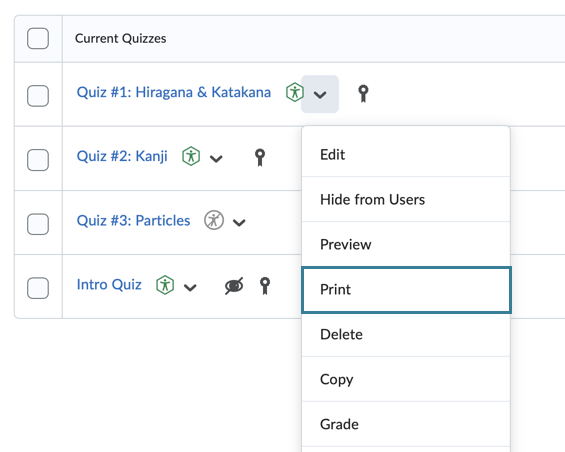
- Click from the drop-down action menu next to the quiz’s name and select the Print option.
- Set the desired Formatting and Answer Key options on the right-hand side of the Print Quiz page.
- Click the Print button to print the quiz as a PDF or send a copy to your printer.
Tutorials
- View the D2L documentation: Print a Quiz
- Watch the video on how to print a quiz
updated 10/02/2025