
Releasing quiz results to students
Releasing quiz results to students
Quiz submission views control the ability for students to review the results of a quiz. Instructors can choose to allow students to see the questions they answered incorrectly, question feedback and if desired, the correct answers to questions.
- What is required: A D2L Brightspace course and a Quiz already created
Evaluation & Feedback
The Evaluation & Feedback section in the quiz settings allows instructors to easily customize what students can see after submitting a quiz.
By default, quizzes auto-publish attempt results and synchronize to the Gradebook options are checked:
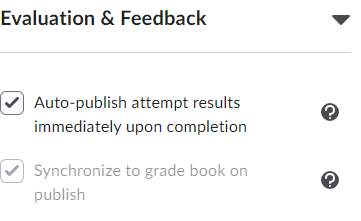
Default results: Autopublish attempts and synchronize to grade book
Keep the Attempt grade checkbox selected if you would like learners to see their attempt grade upon submitting the quiz.
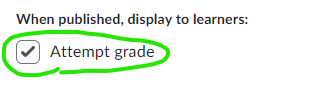
Attempt grade checkbox
Please note: If you have a quiz with manually graded written response questions, then you cannot automatically display the correct answer for the students upon submission. Rather, you must manually grade the attempt and provide feedback; in addition, selecting the “When published, display to learners: Attempt Grade” checkbox for manually graded quiz results will display a zero score. So, for written response and short-answer questions, you might want to leave “Attempt Grade” unchecked.
In the drop-down menu below, select what you want students to see after submitting the quiz. The choices are as follows:
- No questions –> recommended
- Incorrect questions only, with correct answers
- Incorrect questions only, without correct answers
- All questions, with correct answers
- All questions, without correct answers
The choice you make from that list will create a Primary View. However, you can customize an Additional View that will have a date and time of your own choosing.
-
- First, click on the Customize Quiz Results Displays button
- Then, click the + Additional View. On this screen, you can limit when (and for how long) students can review their quiz results.
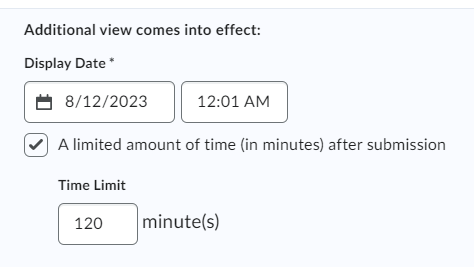
Sample Additional View.
- In the drop-down menu below, select what you want students to see after submitting the quiz. The choices are as follows and each option below will have additional settings that you may choose
- Don’t show
- All questions–> recommended
- Incorrect questions only with learner’s responses
- Correct questions only with learner’s responses
- To save your +Additional View, click the Create button and then the OK button. And if you are satisfied with the quiz settings, click the Save and Close button to save your quiz.