
Intro to the PDF Remediation Tool
Note: The PDF Structural Remediation Engine Max rarely goes by its full name; you might see any combination of these words, but as of writing this article they all seem to refer to the same tool. We’ll call it the PDF Remediation tool.
PDF is a file format developed over 30 years ago to preserve the visual appearance and layout of a digital document across various computer systems. It was never destined for the web and accessibility has largely been an afterthought of the format.
At the core of a PDF is just an image. One might visually see the text, but there is no guarantee of the text data being present. An accessible PDF has an additional “layer” that includes the text and features of the document properly labeled and in the correct reading order.
The text part of a PDF can be created by using Optical Character Recognition (OCR) which will convert an image of text (like a PDF) into text data, which can be searched or converted to audio when necessary. This “layer” of data isn’t visually obvious, in fact, it is nearly invisible without the correct software.
The PDF Remediation tool in Panorama provides a way to see and edit this data and, with some effort, turn a scanned document with a 0% accessibility score into a 100% accessible PDF.
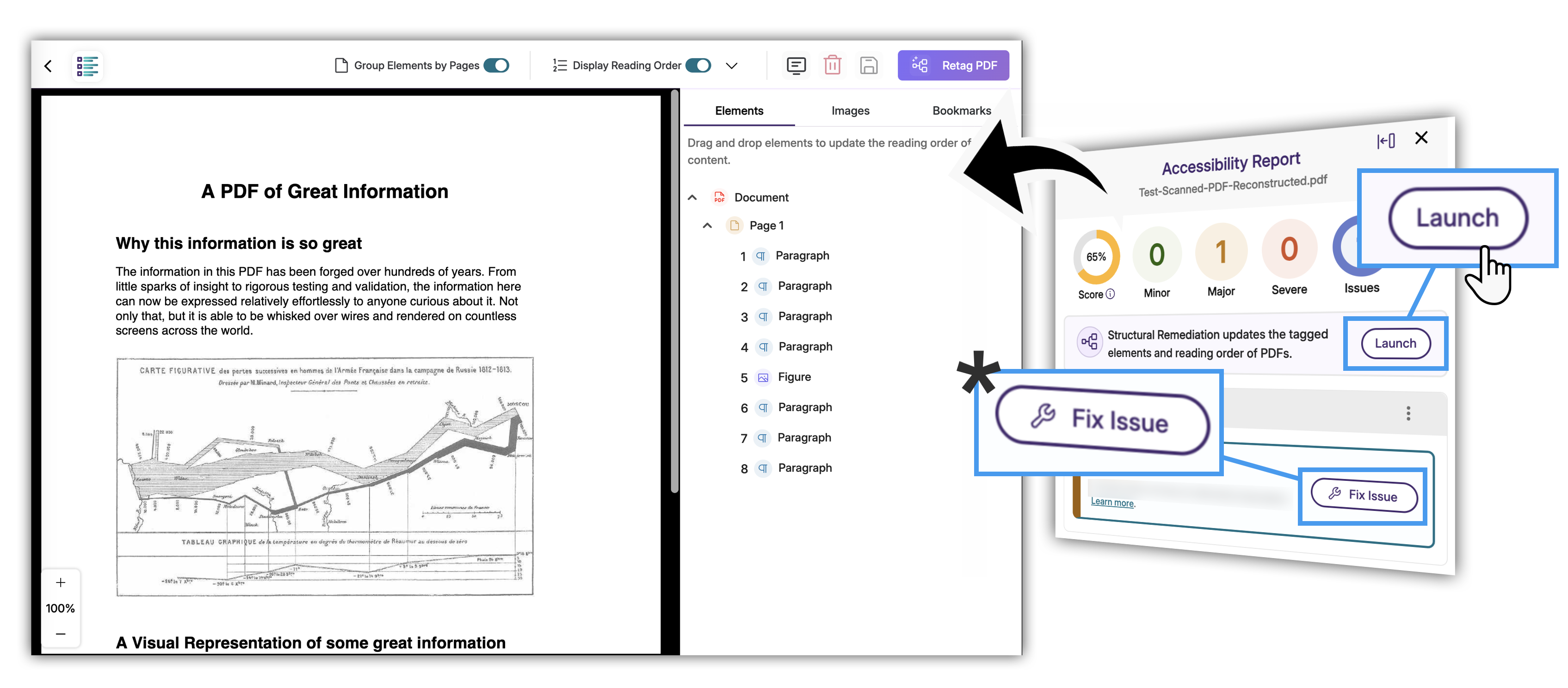
The PDF Remediation Tool can be opened from the Accessibility Report by clicking launch in the upper right.
Find the PDF Remediation Tool
To find the PDF remediation tool, view the Accessibility Report of a PDF file in Brightspace and locate the callout in the right sidebar that starts with “Structural Remediation …”
- Click the Launch button
- Alternatively, clicking the “Fix Issue” button for some* issues will also open the PDF Remediation tool.
- A comprehensive list of which issues open the tool, and which do not is currently not available.
Using the PDF Remediation Tool
The PDF Remediation tool has two main sections.
- The left side will show you the document, highlight the bounding boxes of sections of the data layer, and display reading order information.
- The right side allows you to reorder the elements, change the element type, and view the document structure in an expandable outline.
Selecting an element on the right will highlight the bounding box of that element on the PDF in the left side preview.
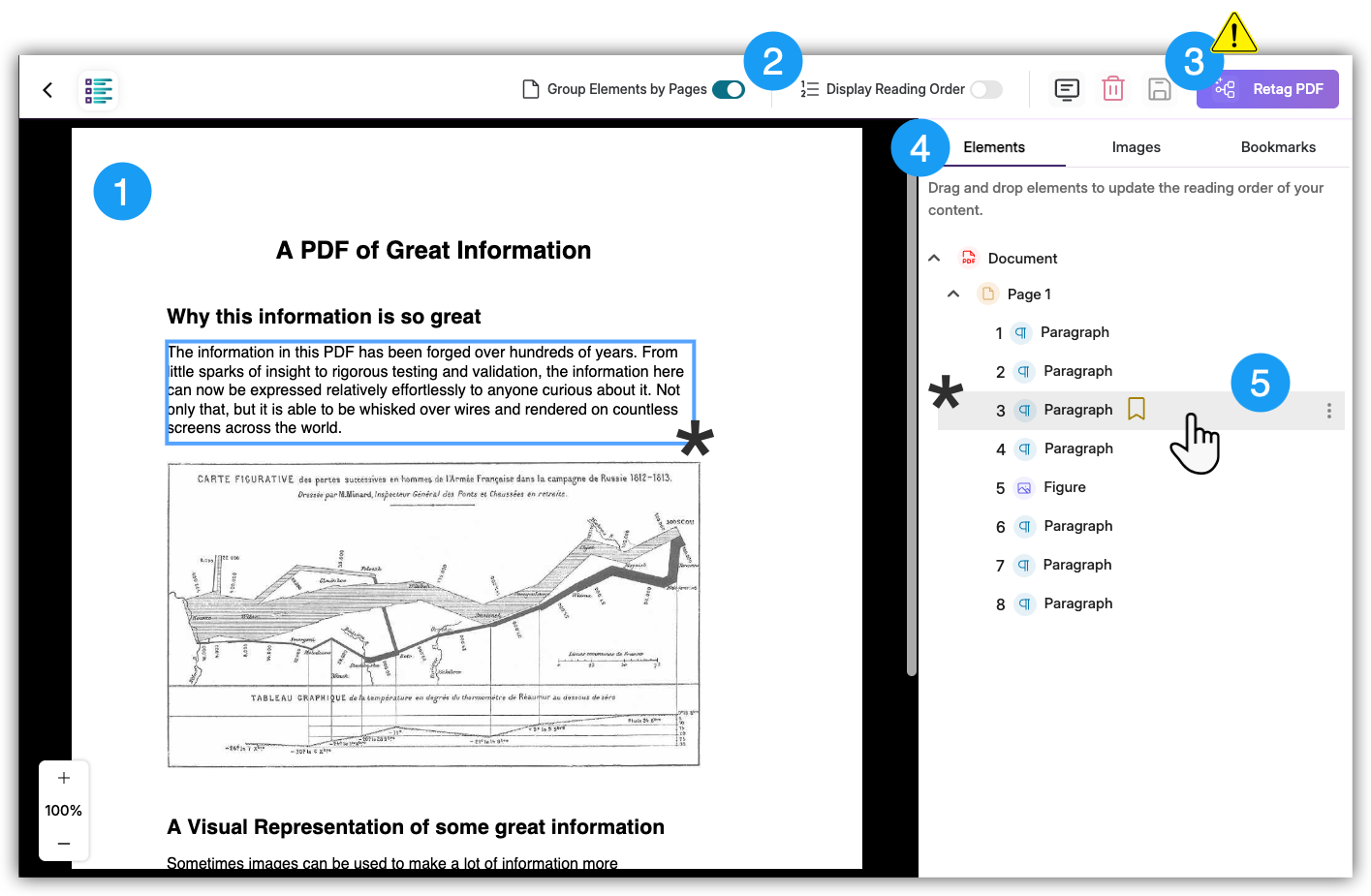
The locations of important controls in the PDF Remediation Tool interface
The PDF Remediation tool interface
- Within the left section the PDF will be displayed.
- Bounding boxes will appear around either selected elements, or all elements if the View Reading Order toggle is on.
- The View Reading Order Toggle is located at the top right corner of the document preview section mentioned just above.
- Toggling this on will highlight all the elements bounding boxes and display numbers in the top left corner of the bounding boxes.
- These numbers correspond to the order of the elements in the data layer or the “reading order.”
- On the top of the right sidebar, there is a callout that begins with “Retag PDF…” and contains a Retag PDF button.
- While it is possible, and maybe even beneficial to retag your PDF using OCR, this button automatically uses only one type of OCR which often in our testing produces inferior results.
- It is not recommended to use this button. Learn how to retag a PDF with better results with the Alternative Formats.
- The main portion of the right sidebar displays the elements (or tags) of the PDF document if there are any.
- Sections can be expanded to view nested elements with the arrow icons to the left of the element name.
- Elements can only be dragged to a new location if it is at the same level in the document structure, for example:
- Above, all the elements listed under the Page 1 element can be re-ordered.
- However, none of the elements can be dragged outside of or above the Page 1 element.
- Hover over an element to show three dots on the right edge of the element.
- This icon provides a dropdown menu with more features like editing the element label (such as Heading 2, Figure, or Paragraph) to provide clear structure and correct labels.
- You can also delete elements that were mis-scanned and contain no information.