
Using Panorama to check individual files
You can use Panorama to review and fix documents even if you don’t teach a class in Brightspace. The tool can scan your document, provide an accessibility score, and help you fix issues to make the document more accessible. This guide explains how to access Panorama and upload files. Other guides will help you with fixing issues.
- What is required: Any D2L Brightspace account.
Steps
- Log in to D2L Brightspace.
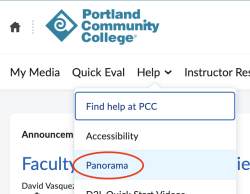
- Click on the Help menu and select Panorama.
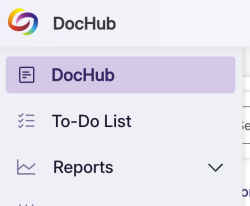
- Click on the DocHub menu on the left side of the page.
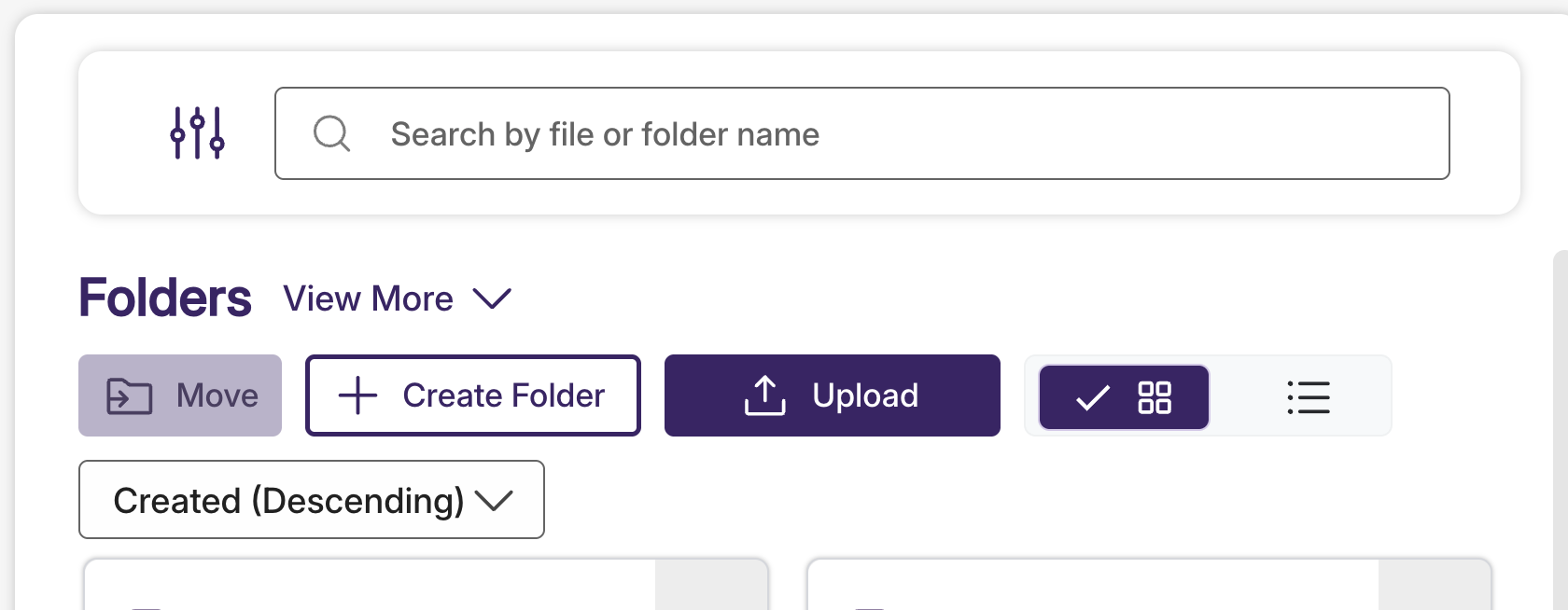
- Click on the Upload button to select a file from your computer. You can also just drag a file onto the page and it should upload.
- Wait for the file to be processed by Panorama to provide an accessibility score. This can take anywhere from a few seconds up to several hours for very complex PDFs.
- Once the document has been processed, a small icon will appear in the top left corner, indicating the approximate accessibility score. Click on the document and select ‘View’ to review the score and any issues.

- Here, you can view the score, access the report, and view alternate formats. Click View again to see the full report and fix issues.
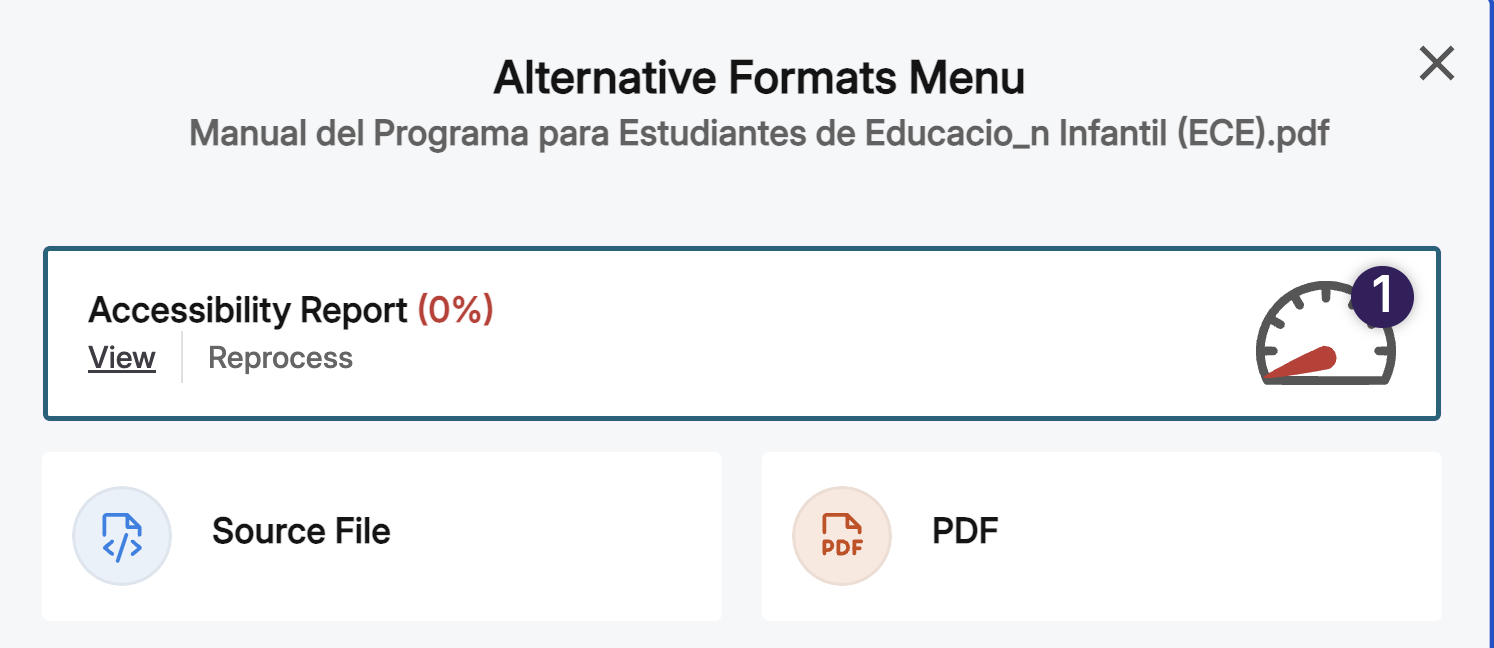
- From here, refer to the Panorama Accessibility Report guide for reviewing and resolving issues.
updated 10/22/2025