
Job Alerts
Setting up a job alert is an easy way to stay on top of potential opportunities at PCC. Job alerts are sent when job opportunities that match your search criteria become available. Follow the steps below to create a job alert:
- Navigate to the searchable All PCC Jobs Career Site.
- Login if you’ve previously applied to PCC or “Create a Profile” by following the applicable link in the top right corner of the PCC Career Site (follow the prompts to create a profile if necessary).

- Once logged in, enter your search criteria into the available fields.
The keyword field is where you can enter a search term for jobs you are interested in (i.e. “custodian” or “biology”).
The location field is where you can identify a specific PCC campus or center if you are only interested in opportunities at a specific location(s).
The employment type field is where you can identify a specific class of employment if you know what classification(s) you are interested in; for more information about employment classification, visit the Employment web page and review the “Job classifications and descriptions” section.

- Click “Create Job Alert”.

- This will open the “Create Job Alert” popup; give your job alert a title and select a notification frequency.
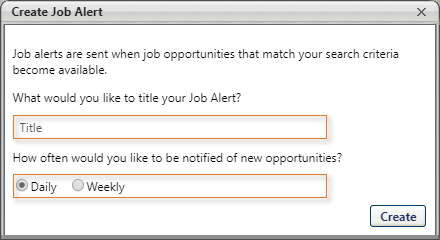
- Click the “Create” button.

- This will save your job alert and close the “Create Job Alert” popup; you can edit or delete job alerts at any time by visiting your profile.