
How to register
Help choosing classes
New students: if you’re making decisions about your first term classes, see our help page: plan your first term.
Current students: for help with long-term plans, make an appointment with your assigned advisor.
Most students can register for classes beginning about 6 weeks before the term starts: see when to register.
Before you register for classes, you can check to see if your account is ready to register.
How to register
-
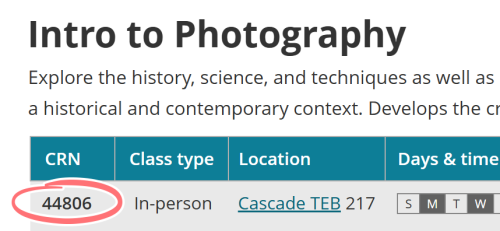 Find your CRNs
Find your classes in the class schedule. Make a note of the course reference number (CRN) for each class you want to take.
-
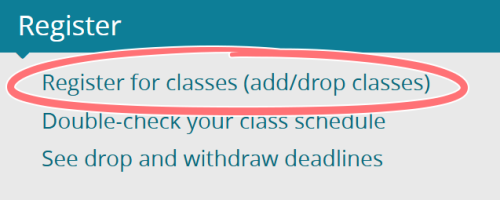 Start registration in MyPCC
Log in to MyPCC. On the home tab, click register for classes in the term-to-term checklist.
-
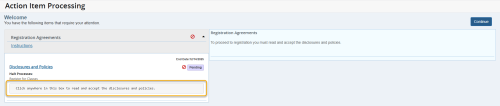 Read disclosures
If required, you may need to sign a disclosure before continuing. Follow the onscreen instructions. After agreeing to the statements, click continue to go to the registration screen.
-
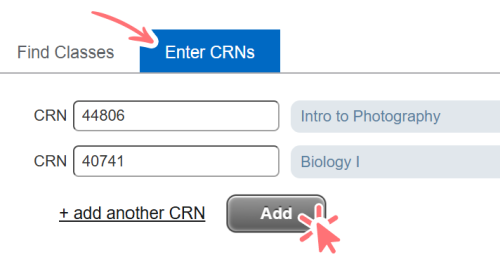 Enter CRNs
Select the upcoming term and go to the enter CRNs tab. Enter the CRNs for your classes and click add.
mobile screen button Using your phone? Look for the Show / Hide Panels button at the bottom of the screen.
-
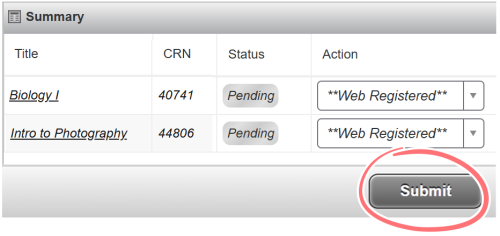 Submit changes
Your classes should now be listed in the summary section. Click the submit changes button to register for your classes.
-
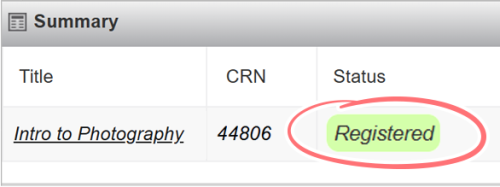 Check status
Check the summary to make sure you have been successfully registered. If there’s an error, follow the instructions in the message to fix the issue.
Common registration errors
Error: you must complete prerequisites
There are classes you need to take before you can register for this class. See what prerequisites are needed in the class schedule. If you have already taken prerequisite classes at another school, ask your advisor about a prerequisite override.
- Online classes only: the Start Guide for Online Learning must be completed before registering for online classes. Go to MyPCC arrow right My Courses tab arrow right look under “Ready to take online classes?” to see how to complete the guide.
Error: class is full
There’s no more room in this class, but you can get on a waitlist if there is space available. See how to get on a waitlist.
Error: you have holds
There’s a hold on your account that’s preventing registration. To see your holds, go to MyPCC arrow right Home tab arrow right click holds in the term-to-term checklist. If you aren’t sure how to fix a hold, email start@pcc.edu with your name and G# and ask us to check on your holds.